Shooting ranges can get crowded, and with multiple SG devices in use, it’s easy for connections to go wrong or for device settings to be accidentally altered.
📲 The latest update for the Drills App and Shooters Global devices introduces a secure Bluetooth connection system, designed to prevent unwanted or accidental pairing.
In this guide, we’ll show you how to pair your devices safely, switch between smartphones, and troubleshoot connection issues — step by step.
General Rules for Pairing
🔄 Before starting, make sure you have updated the Drills App to the latest version and the device firmware.
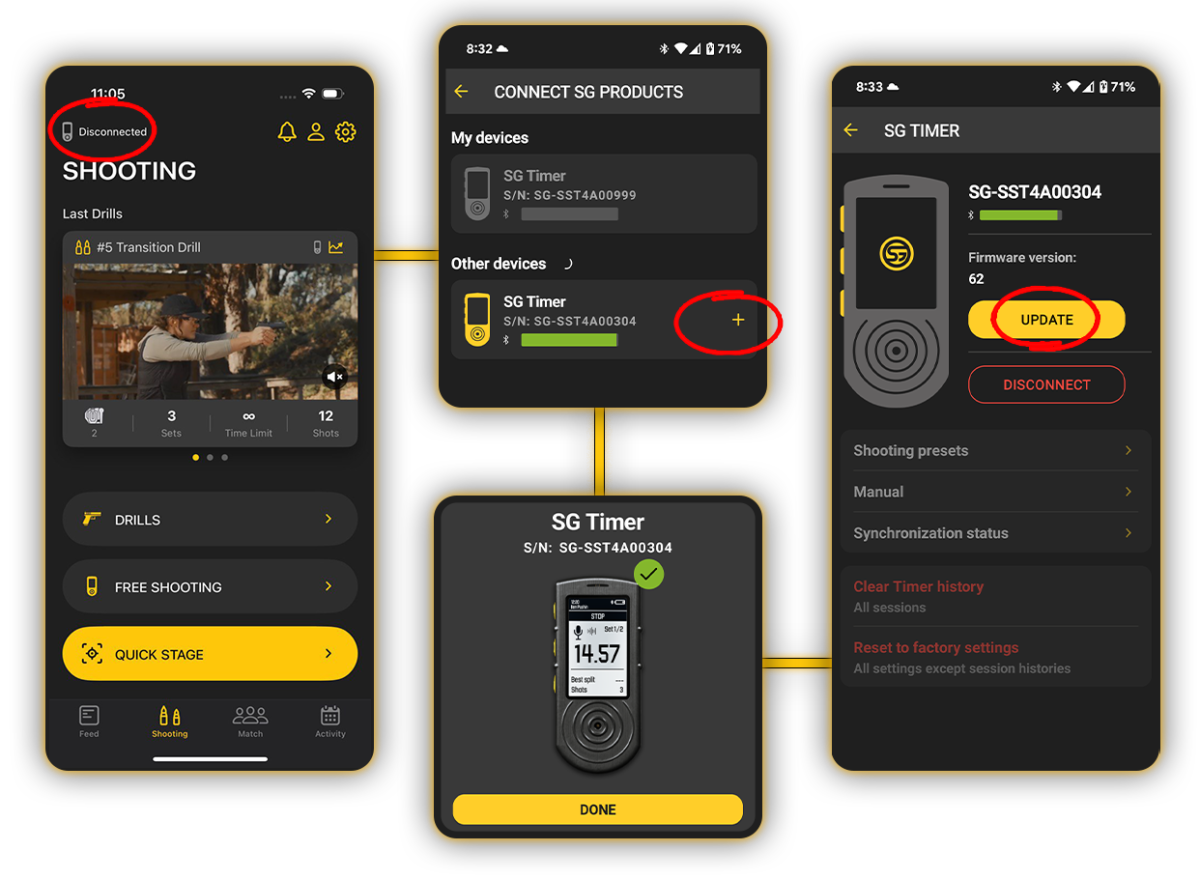
The pairing process works similarly for all SG devices. Bluetooth pairing mode must be enabled before pairing.
⌛ Once active, you have 60 seconds to complete the connection from your smartphone.
Device-Specific Instructions
SG Timer
1. Go to Settings → Bluetooth → Pairing mode → On. ⚙️
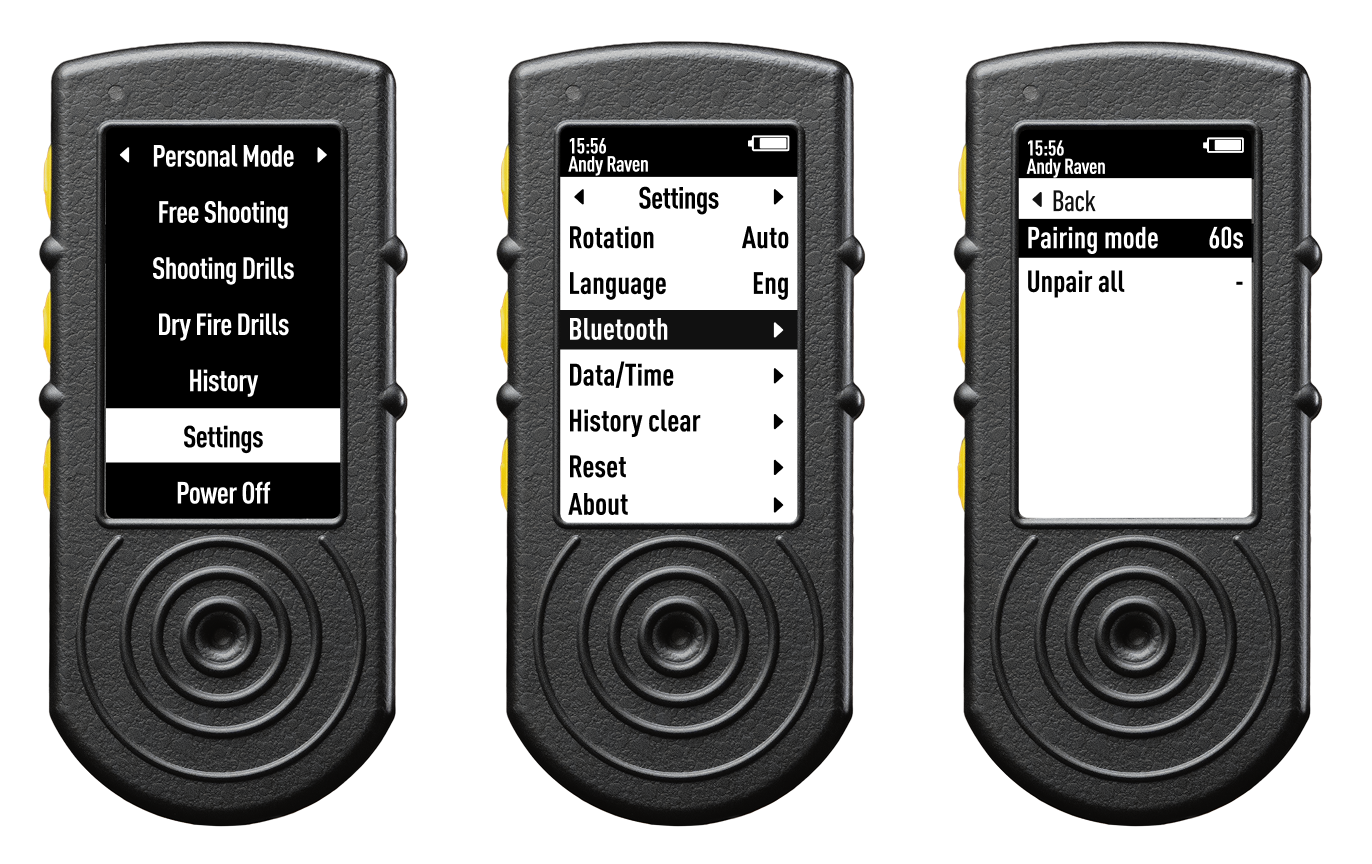
2. Open the Drills App and select your device from the list.
3. To finalize the pairing, confirm on both the app and the device.
✅ Once connected, the device is ready to use.
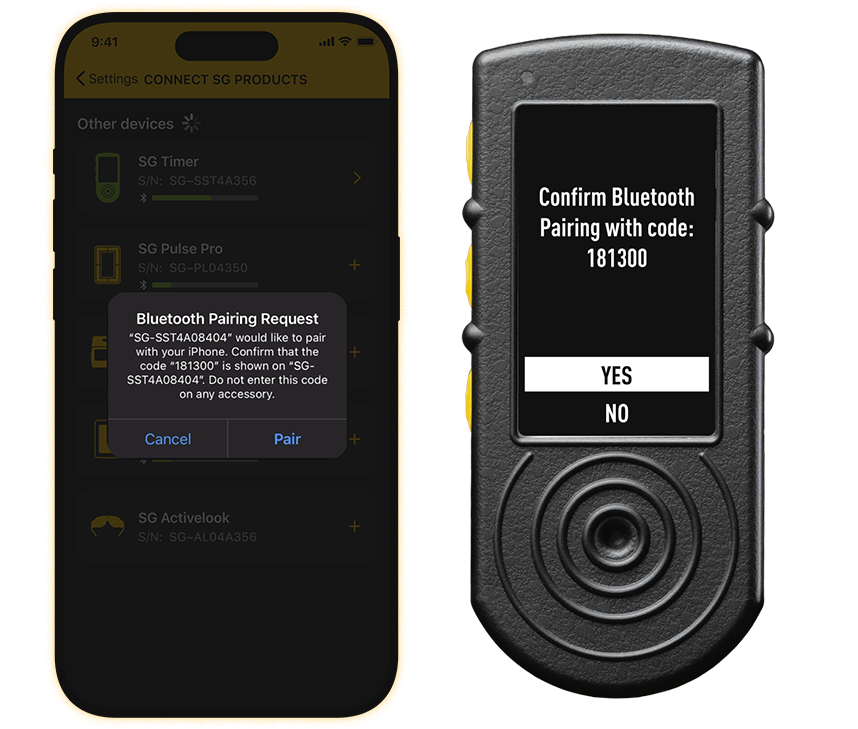
ⓘ Tip: SG Timer 2 can remember up to 8 smartphones. Devices added to the paired list will connect automatically when the Drills App is opened— visibility mode is not required.
SG Timer Go
1. Make sure the device is Off. Power on the device by pressing and holding the main power button. Keep holding until the Bluetooth icon blinks (about 4 seconds).
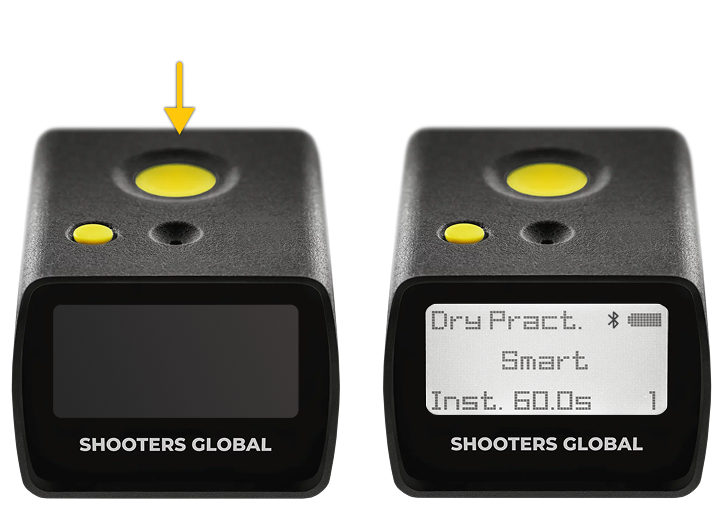
2. Open the Drills App and select the device. ✅ Confirm the pairing request on both the app and the timer screen.
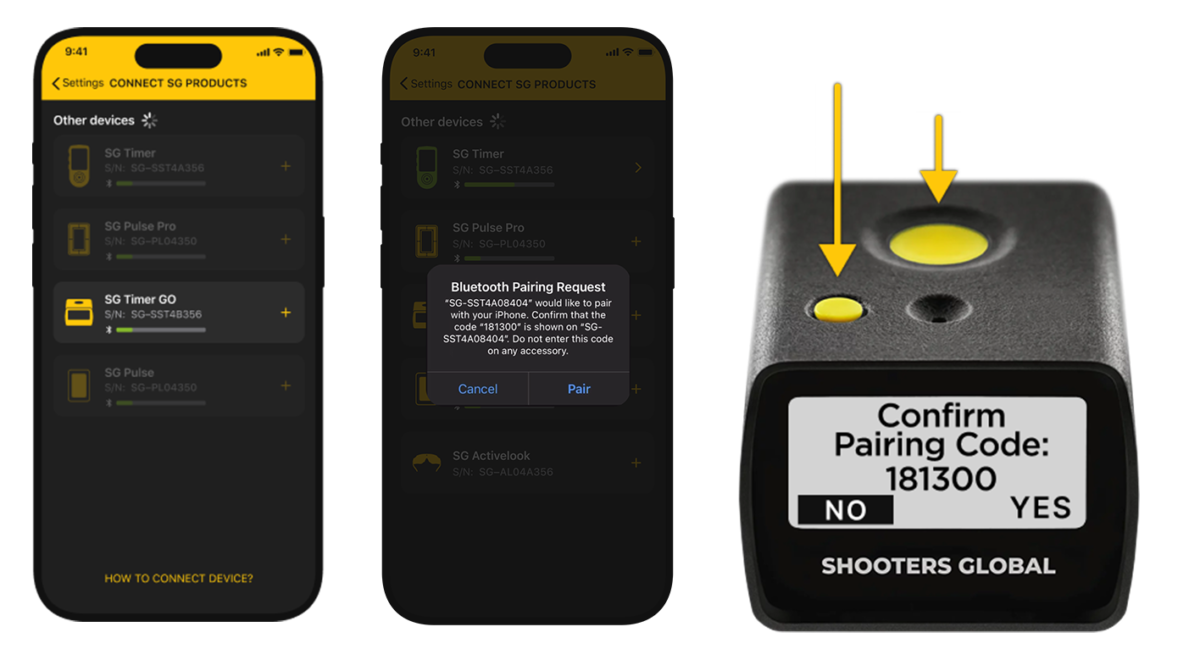
ⓘ Note: SG Timer Go supports one smartphone at a time. To connect a new phone:
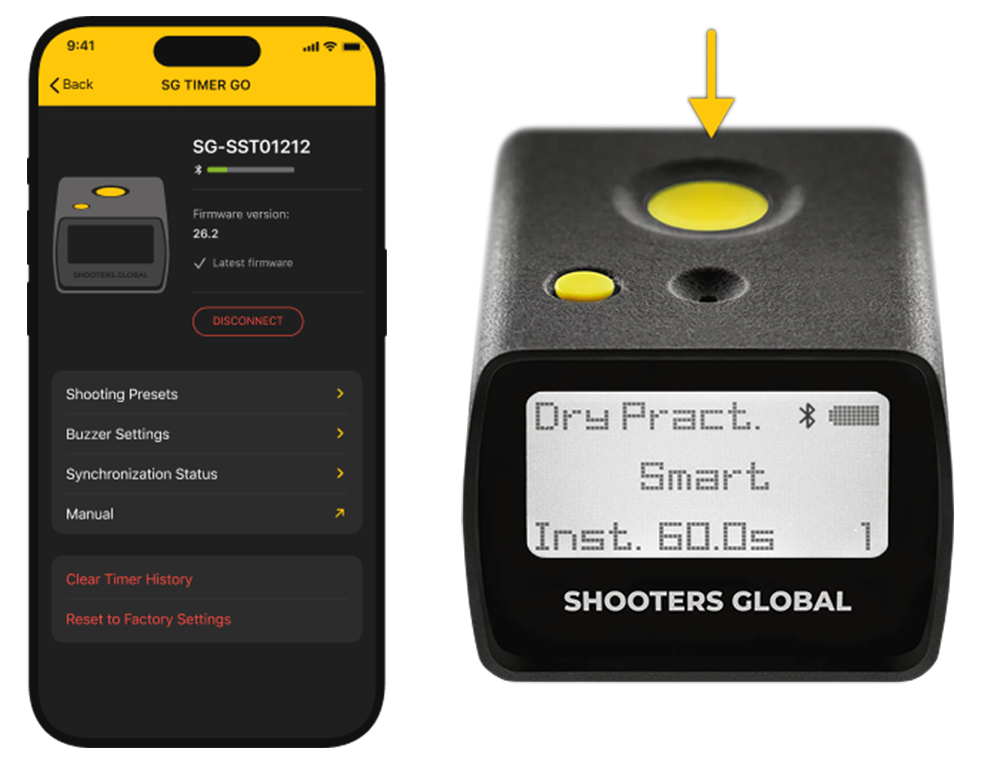
Turn Off the device. Then activate pairing mode again by holding the Power button — this will automatically unpair the previous phone. Connect with the new smartphone.
SG Pulse Pro
1. Go to Settings → Bluetooth → Pairing mode → On. ⚙️
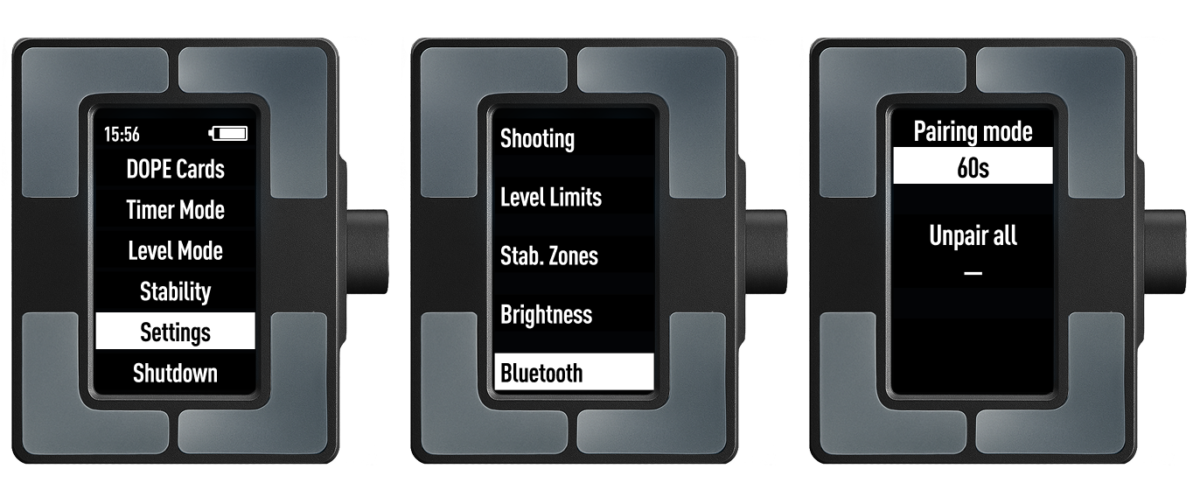
2. In the Drills App, select SG Pulse Pro from the list.
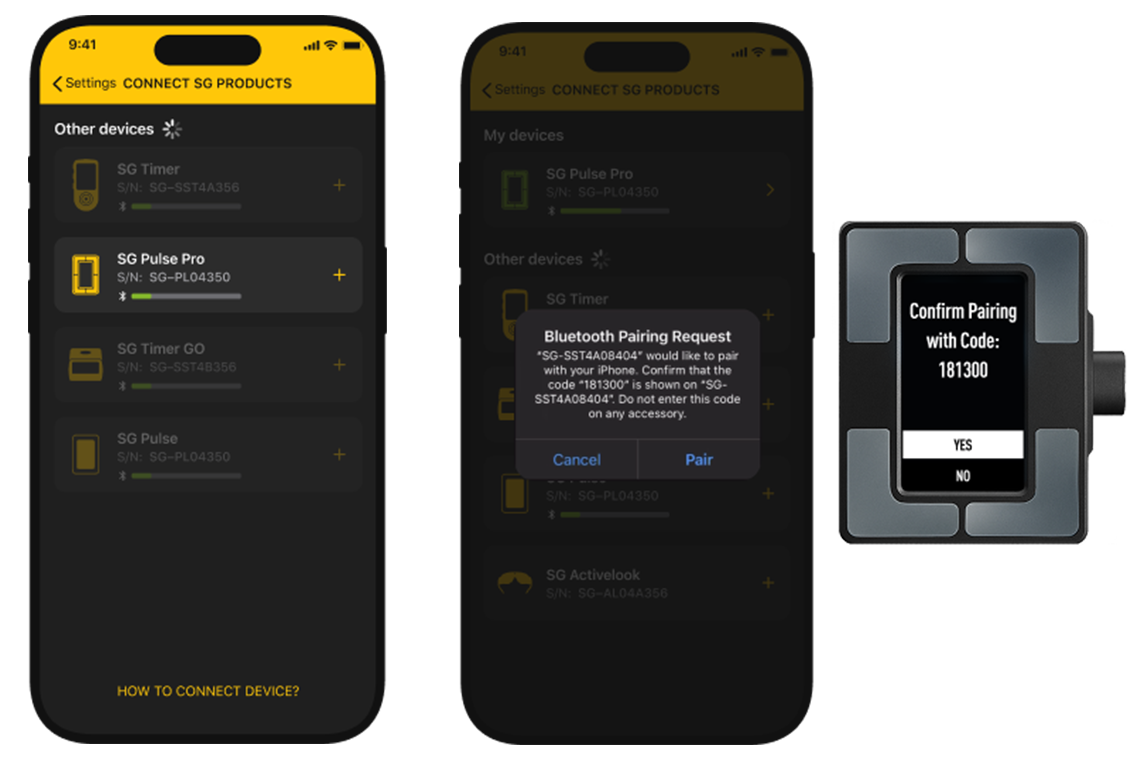
3. Confirm the pairing request on both the app and the device screen. ✅ SG Pulse Pro successfully connected.
SG Pulse Pro can remember up to 8 smartphones.
To add a new phone: Enable Pairing mode on the device and repeat the pairing process.
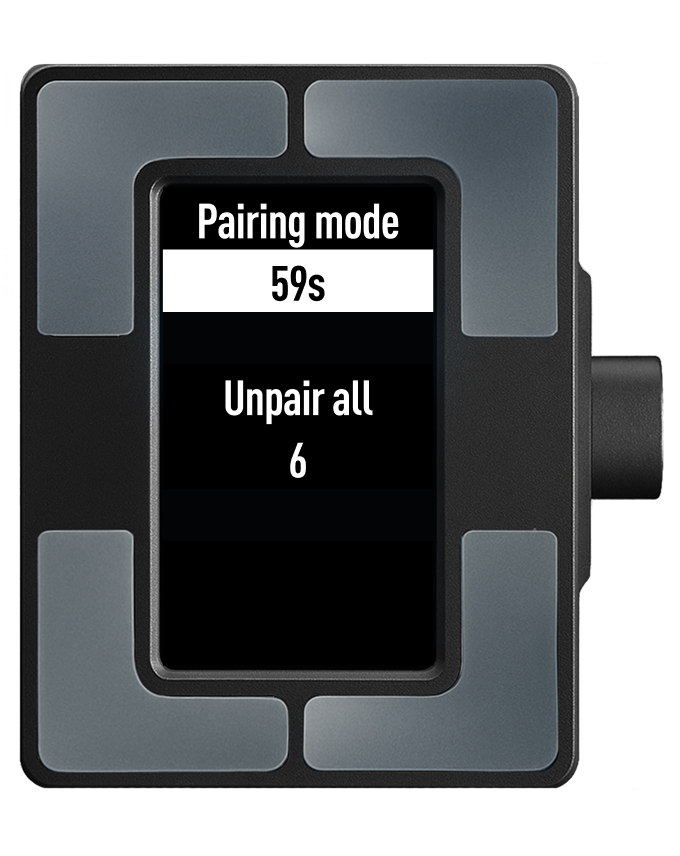
Smartphones that have been added to the paired devices list will connect to the SG Pulse Pro automatically when the Drills App is opened – Pairing mode is not required.
SG Pulse
1. Make sure the device is Off. Press and hold the Power button. Keep holding until the blue indicator blinks 4 times. This means the device is in pairing mode.
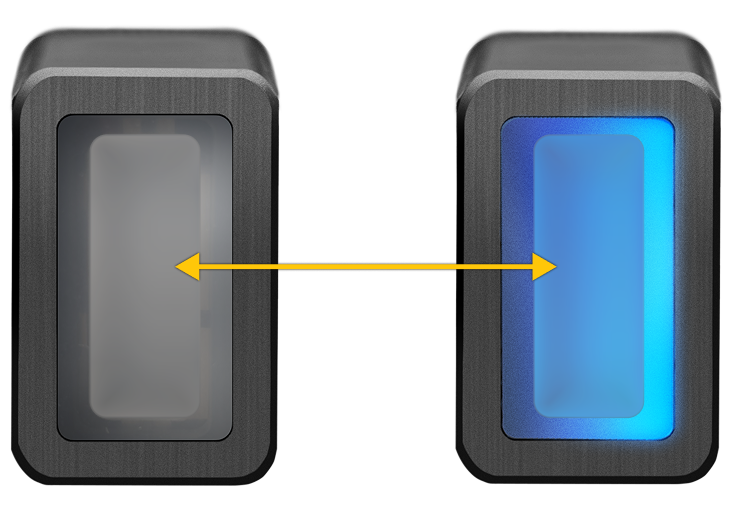
2. In the Drills App, select SG Pulse from the list.
3. ✅ Confirm the pairing request in the App.
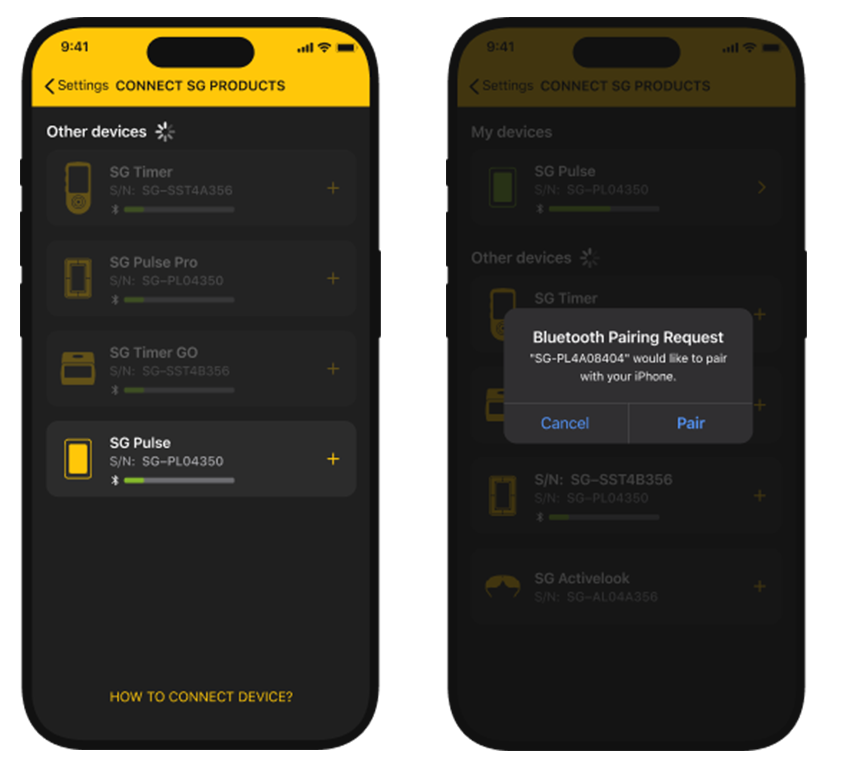
SG Pulse successfully connected.
ⓘ Note: Confirmation appears only in the app, as SG Pulse has no screen. Only one smartphone can be paired at a time.
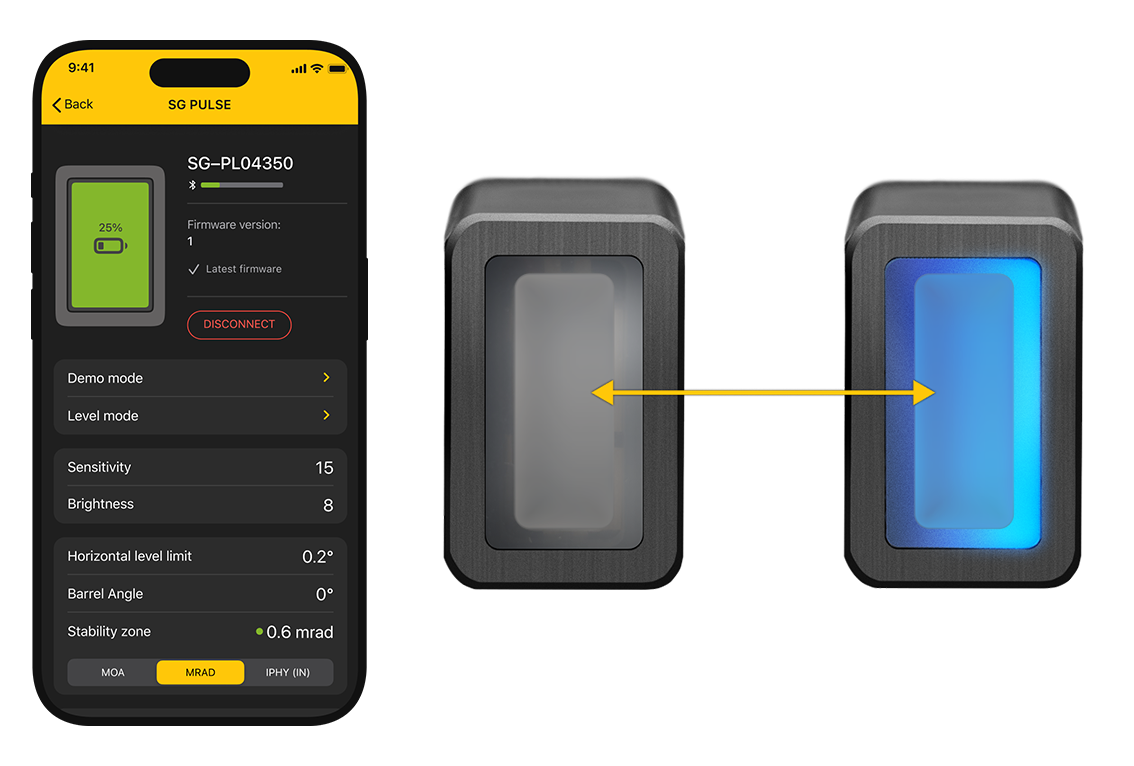
To connect a new phone: Make sure the device is Off. Activate pairing mode again (hold Power button until blue blinks) — this will automatically unpair the previous phone. Connect with the new smartphone.
Troubleshooting
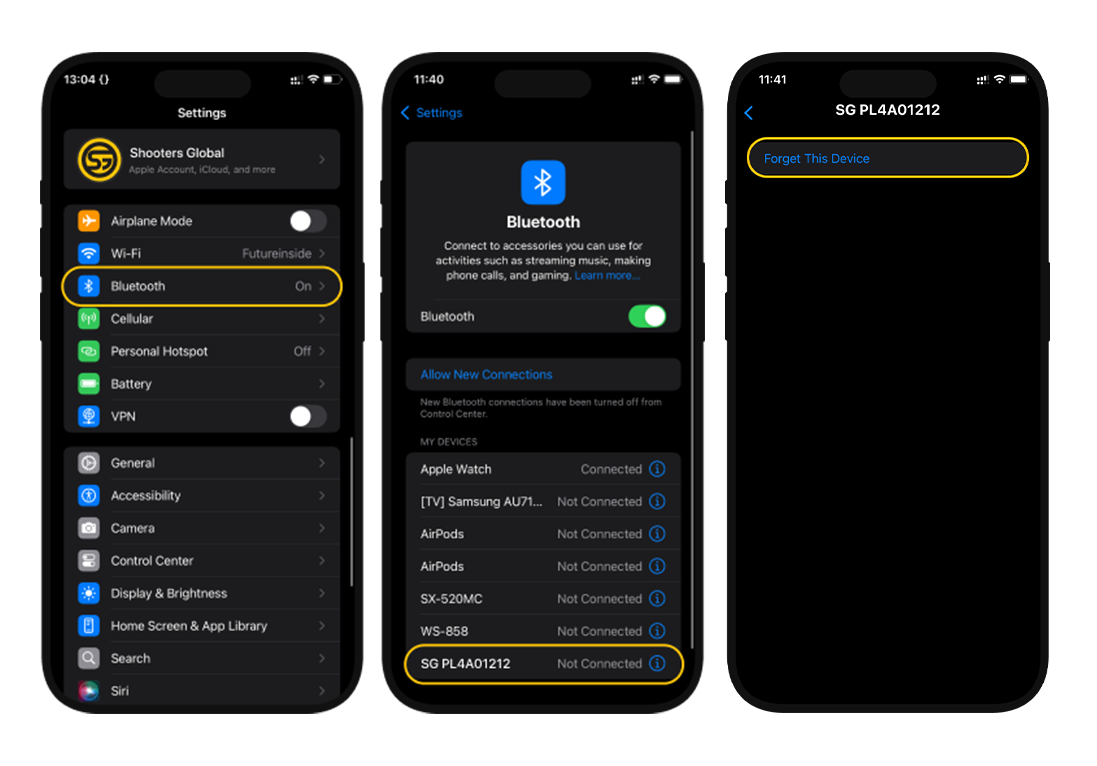
❗If you cannot connect or see a connection error on any of your device (SG Timer, GO Timer, SG Pulse, Pulse Pro) you must remove the old connection from iOS/Android settings.
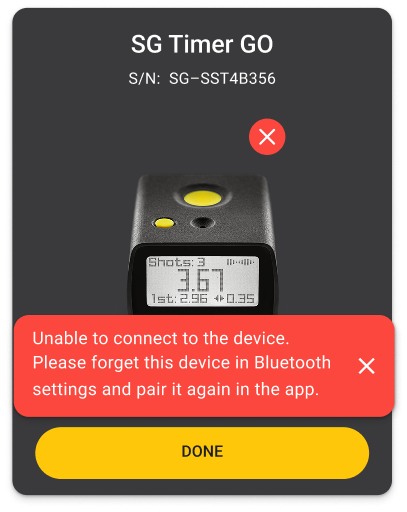
1. Go to your smartphone’s system Bluetooth Settings.
2. Find the device in the list and select „Forget This Device”.
3. Enable pairing mode on the device and try again in the Drills App.
Now try connecting in the Drills App again.
ⓘ Note: Menu names and options may vary depending on your smartphone’s operating system and model.
🛡️ This secure connection update ensures that no other device can interfere with yours, keeping your settings safe and your device fully under your control — even on busy ranges or during competitions.
We hope this guide was helpful.
📩 If you experience any connection issues or need assistance, please contact our support team at support@shooters.global.