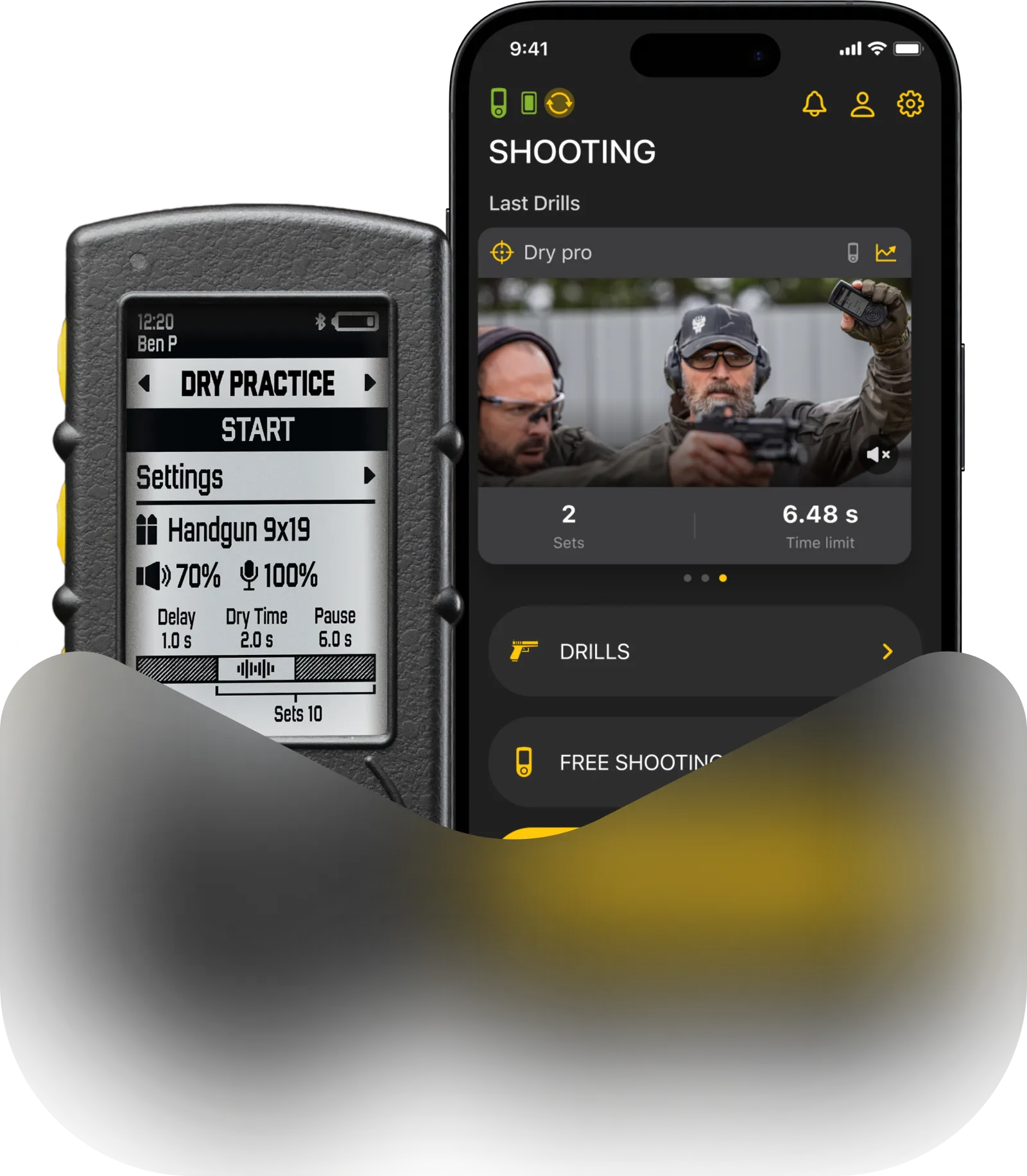
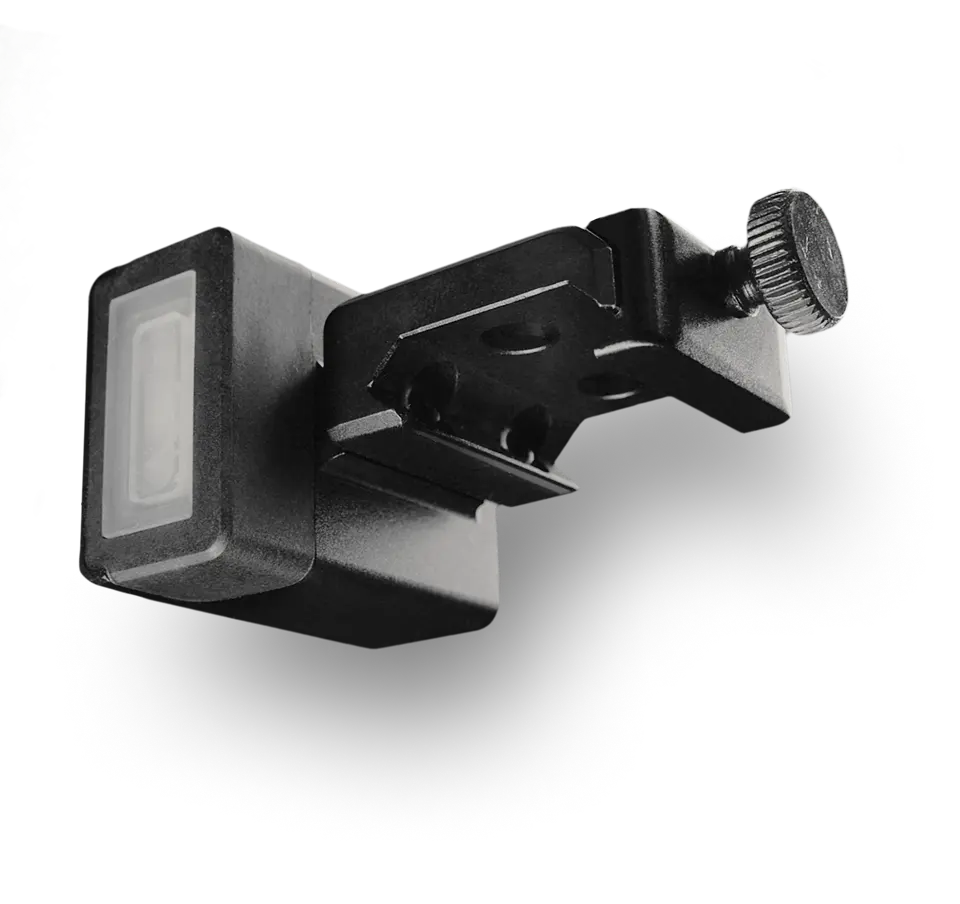
To use all features of SG Pulse precision shooting assistant, you need to sync it with the Drills app.
To download the Drills app on Apple App Store or Google Play, search for “Drills” or scan the QR code below.

This app can be used not only for precision shooting, but also for training and dry firing with shot timers. Here you can create shooting presets, track your progress, create matches, and more. You can use this app with both SG Pulse and SG Timer at the same time to save data from both devices in one place.
When downloaded, create an account or log in. If you are entering the app for the first time, make sure to click “Create Account” instead of “Sign In”.
💾 The account stores all settings, presets, results, drills, and video content in the cloud, so your data will be saved if you change your smartphone or timer.
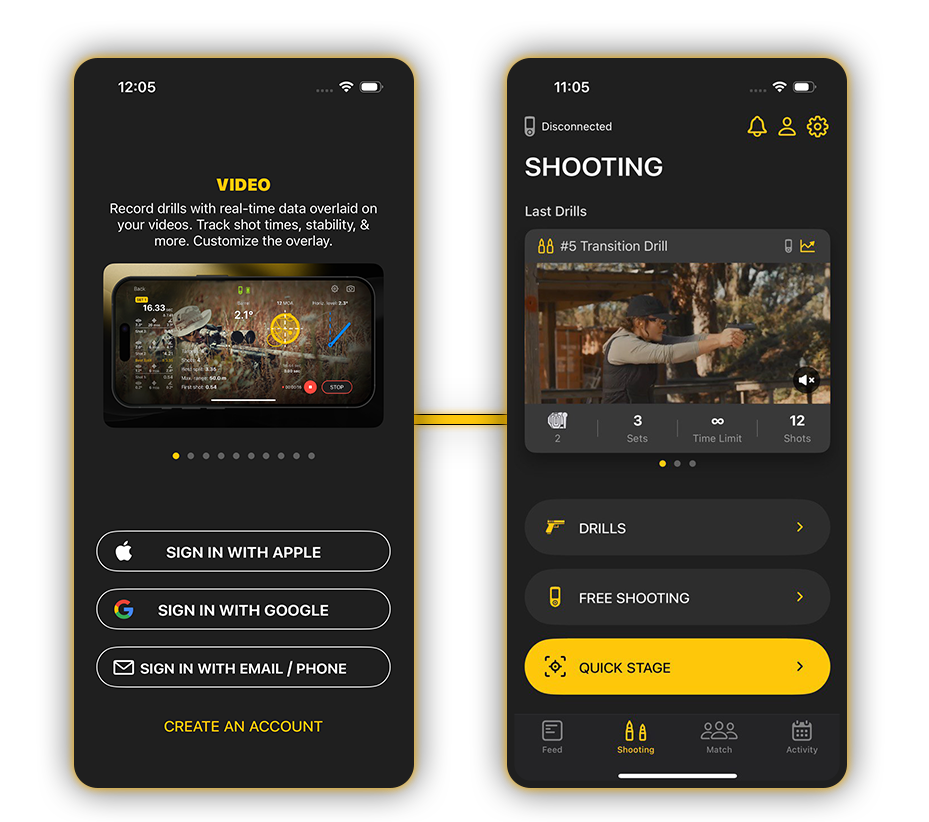
Prepare Your Smartphone
- Turn on Bluetooth on your smartphone
- Grant Location and Bluetooth permissions
- Open the Drills app
Turn On the SG Pulse and Enable Pairing Mode
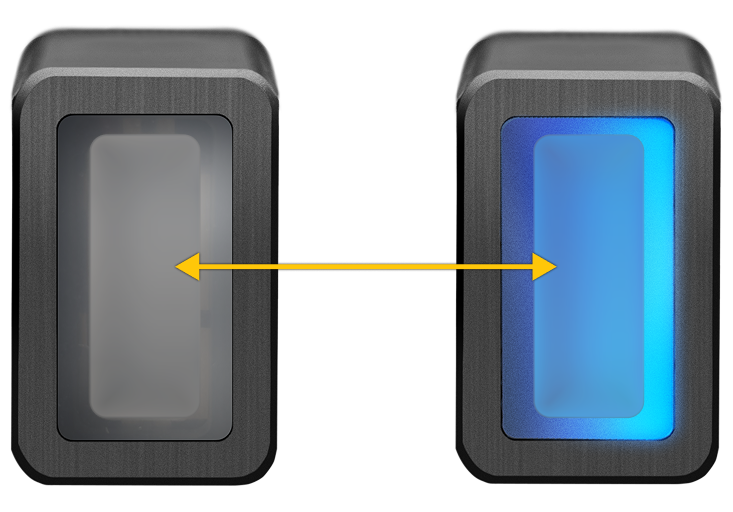
To pair your SG Pulse for the first time:
1. Make sure the device is Off.
2. Press and hold the Power button. Keep holding until the blue indicator blinks 4 times. This means the device is visible.
You will have 60 seconds to connect the device to your smartphone.
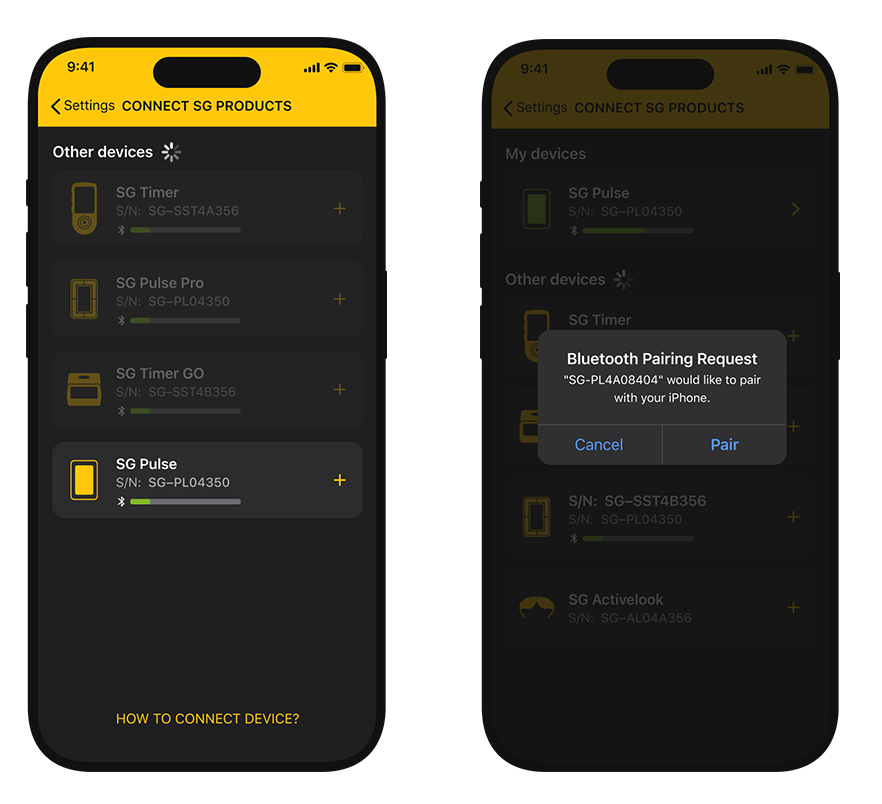
In the Drills App, select your device from the list.
Confirm the pairing request in the app.
Once confirmed, the device is connected and ready to use.
Connecting to Another Smartphone
If you need to connect the level to another smartphone:
- Enable Pairing Mode on the level again;
- Repeat the pairing process.
SG Pulse supports pairing with one smartphone at a time.
If you cannot connect or see a connection error:
- Go to your smartphone’s system Bluetooth settings
- Find the level in the list of devices
- Select Forget This Device
- Enable Pairing Mode on the SG Pulse
- Try connecting again in the Drills app
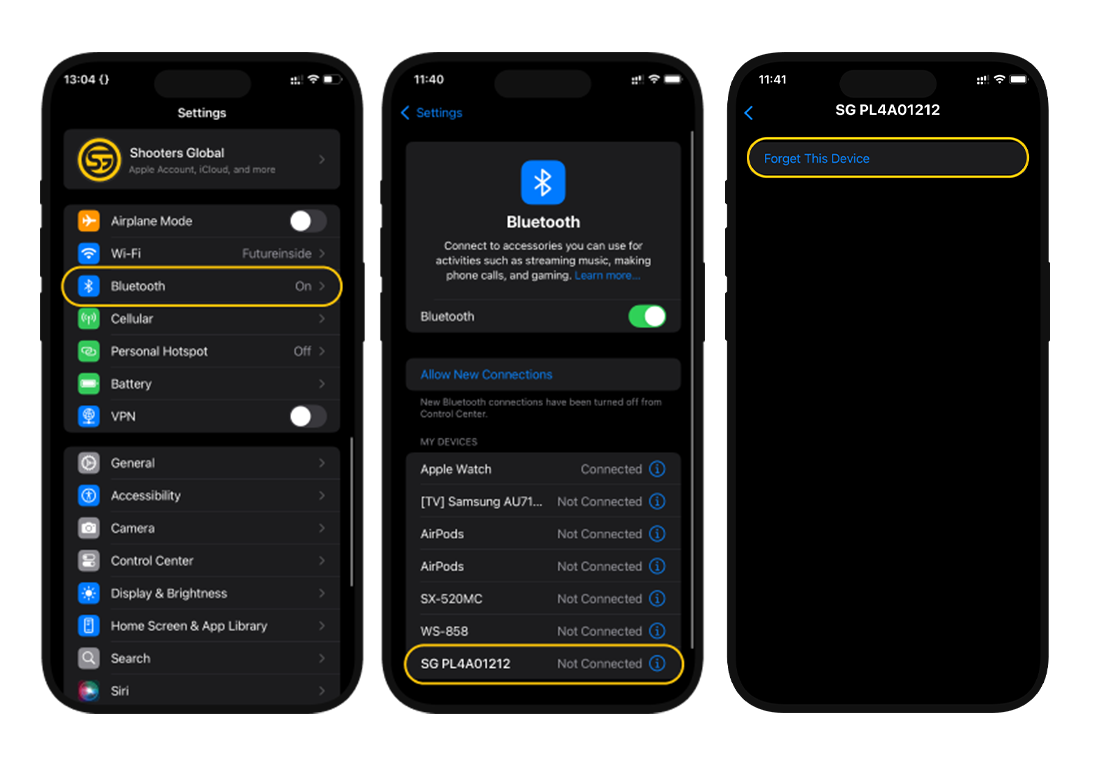
👇👇👇 Watch the video below for Bluetooth pairing instructions for this and other Shooters Global devices.
SG Pulse settings
Go to settings in the top right corner of the main screen — “Bluetooth devices” and select SG Pulse. If the device doesn’t show up, make sure the Pulse is turned on and Bluetooth is active in your mobile device.
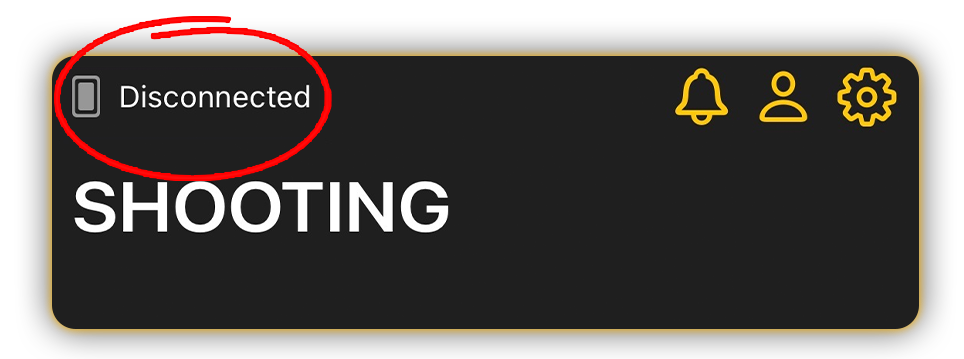
Click on the SG Pulse tab when Bluetooth connection is active.

Here you can manage and customize your device.
First of all, we recommend you to update the firmware. If the update is available, you will see the yellow “UPDATE” button. Click it and follow the instructions on the screen.

Then, try using “Demo Mode”.
Rotate the device in different directions to see how the indicators change and better understand their mechanics.

Scope leveling mode is made to help you to level the scope to the rifle, we will cover it in a separate manual.
“Sensitivity” determines how sensitive the device will be, recognizing shots for calculating the transition time. If the Pulse detects ghost shots, or catches the slide return as a shot, reduce the sensitivity. If the device misses shots, increase it.
Then, we can see “Brightness”. Here you can customize the brightness of the LED. You can increase the brightness to see the light better in the sun, or decrease it for night shooting.
Then, you can see the Horizontal level limit, stability zone and barrel angle one more time. We have already covered them in the corresponding videos.
You can use the “Calibration” function to manually calibrate the SG Pulse on your rifle, for more information please go back to “Level mode” or “Barrel angle” pages depending on what angle you need to adjust.
If you need, you can reset to factory settings anytime.