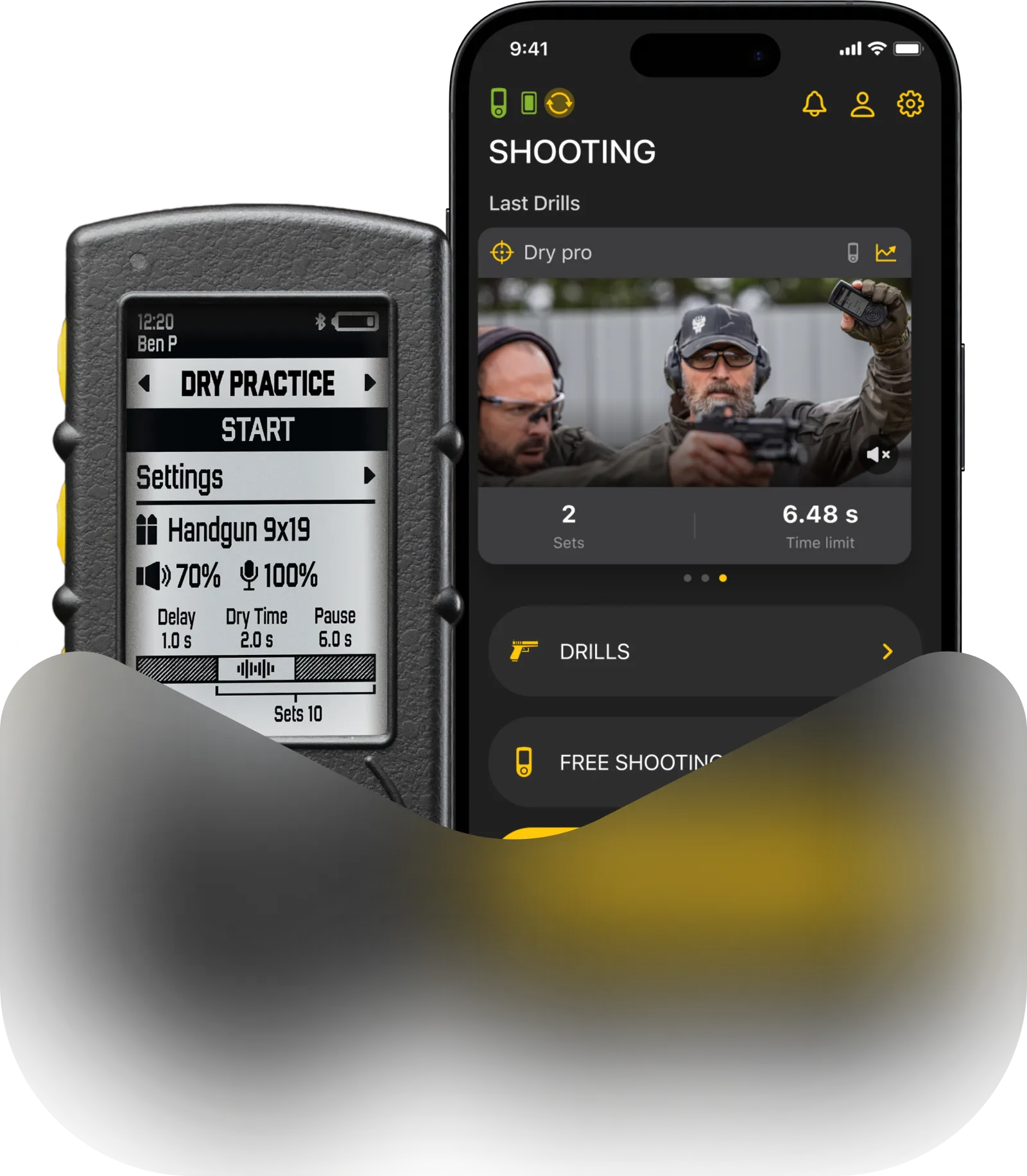
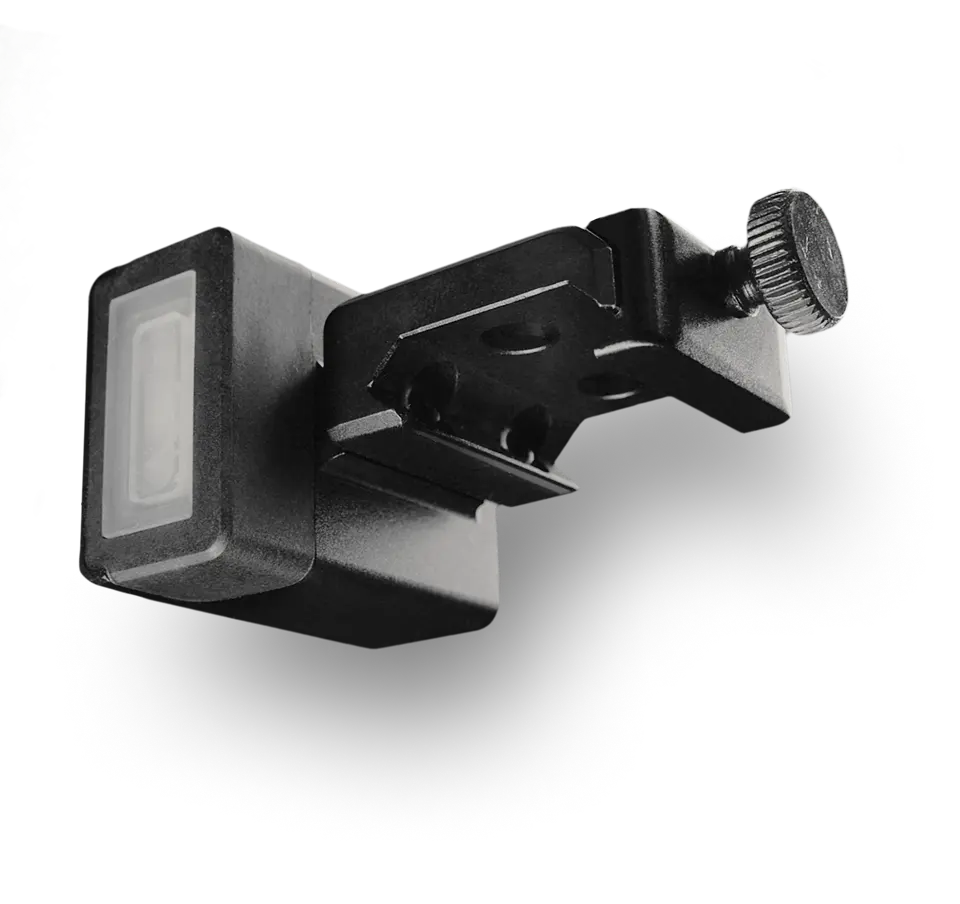
“Drills” is the mobile app by Shooters Global, created specifically for SG devices.
When you open the Drills app, you will see the main menu at the bottom of the screen, which consists of the following buttons.

🔸 Feed. An internal news feed where you can share your videos, communicate, and find friends.
🔸 Gallery. This is where all the videos recorded during your sessions are stored. They are categorized into two types: those stored locally within the app and those uploaded to the cloud.
Within the Gallery, you can use the Shotisize feature to overlay shot times on your videos. For more details on how it works, please refer to the dedicated Shotisize manual.
In this section, you can also view your videos using the built-in player.
Long-press a video to access the following options:
- Share the video to the FEED.
- View the video within the Activity section.
- Save or Delete the video.
👆👆👆 Multi-select is also available, allowing you to perform actions on multiple videos at once. For example, you can download several videos to your smartphone simultaneously or share them across messengers and social media platforms.
🔸 Shooting. This section includes various training modes like Free Shooting, Quick Stage and Drills. We will tell more about each mode in the following videos.
🔸 Match. Here you can create your match between friends and start competing.
🔸 Activity. it is where all your training data is stored, sorted by dates.
🔸 Profile. Access your personal statistics, posts and friends. You can also edit your profile here.
🔸 Settings. This is where you manage your devices and personalize your experience. In this section, you can:
- Connect your devices;
- Configure and create Gun Types;
- Access your DOPE Cards;
- Choose the units system (Imperial/Metric);
- Toggle notifications on or off;
- Set your running speed;
- Change the app language;
- Apply video settings and customize how your training media is uploaded (e.g., via Wi-Fi only or cellular data);
- Track App usage, free space and clear cache.
Additionally, you can access User Manuals and review our Privacy Policy.
The Drills app allows you to:
🔸 Use different training modes
🔸 Create shooting courses
🔸 Track your performance in particular drill with advanced metrics
🔸 Record videos
🔸 Update timer firmware
🔸 Store results in an interactive calendar
🔸 Review stages built in SG Stage Builder 2.0 in AR
🔸 Open new ways of programming the timer
🔸 Run mini matches
🔸 Save presets
🔸 And more…
We highly recommend you to download it. It is free and very helpful.
Download & Quick Start
To download the Drills app on Apple App Store or Google Play market you may search for “Drills” or scan the QR code below.
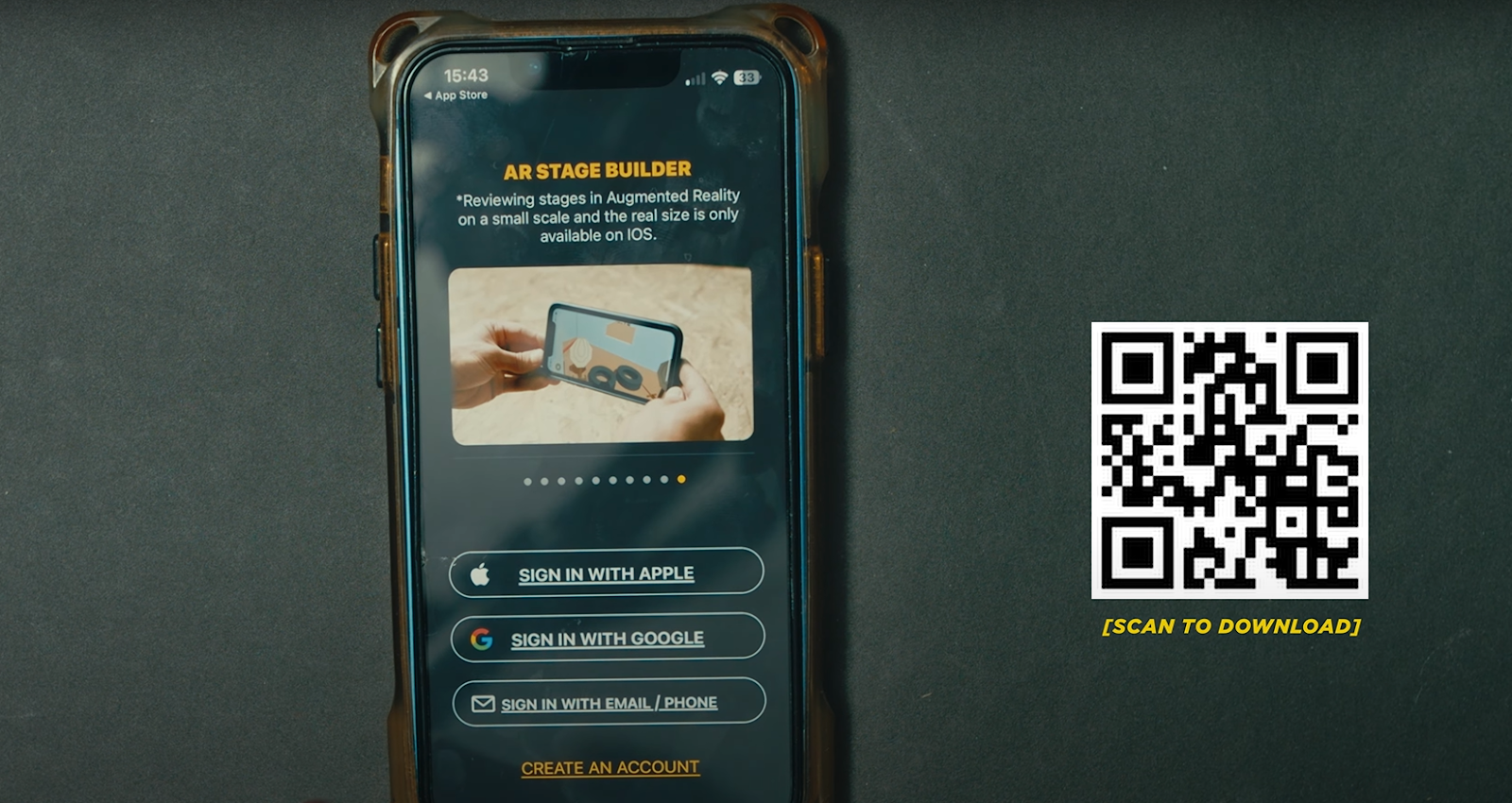
When downloaded, create an account or log in. If you are entering the app for the first time, make sure to click “Create Account” instead of “Sign In”.
Tap timer icon in top left corner and select your device to connect. You may connect multiple devices at once.

Also read:
If the device doesn’t show up, make sure that it’s turned on, Bluetooth is enabled on your smartphone, and the pairing mode is active on your device.
All Shooters Global devices connect to the Drills App via a secure Bluetooth connection. The pairing process follows the same logic for all our hardware.
1. First, you need to put your device into Bluetooth Pairing mode. Once Pairing mode is enabled, you will have 60 seconds to connect the device to your smartphone.
2. In the Drills App, select your device from the list of available hardware.
3. You will see a Bluetooth pairing request on both the Drills App and the device screen.
⚠️ Note: For SG Pulse, the pairing request appears only in the Drills App since the device does not have a screen.
4. To complete the connection, you must confirm pairing on both the smartphone and the device. Once confirmed, your device is connected and ready to use.
For detailed instructions on how to put your specific device into Pairing mode, please refer to the individual user manual for that device:
→ SG Timer / SG Timer 2;
→ SG Timer GO;
→ SG Pulse;
→ SG Pulse Pro.
Connection quality depends on many factors, such as distance, obstacles, weather, etc. But in an open space the effective distance of Bluetooth connection can reach 260 feet or 80 meters.