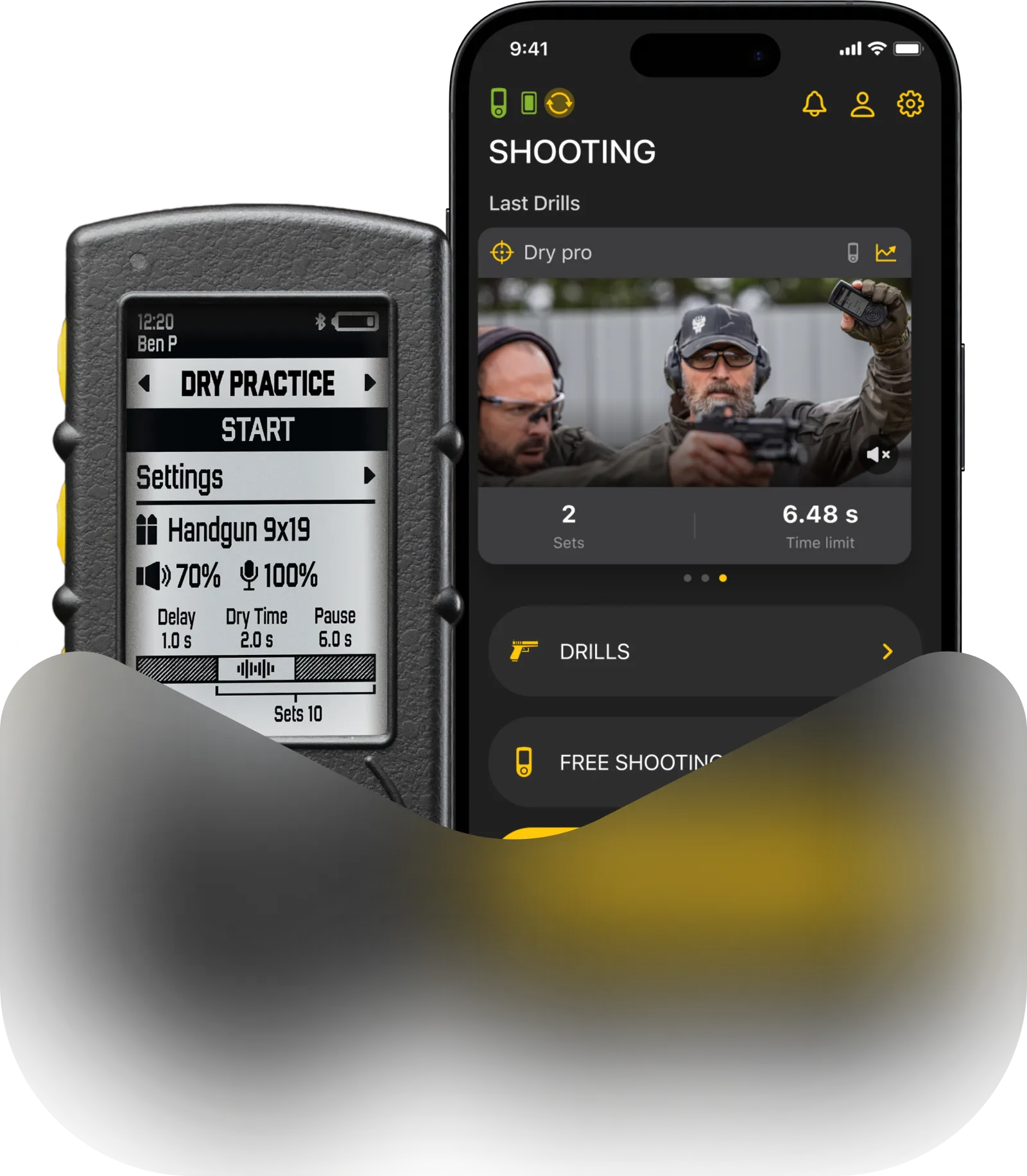
Drills on Apple watch allows you to fully control SG devices remotely and monitor results.
Just make sure the Drills app is installed in your watch app. Then you need to open Drills on your smartphone and pair the timer, if you haven’t done so already. After that you can just open the app on your watch and it will pair automatically.
You can connect the timer directly to your Apple Watch by selecting the timer on your watch and confirming the pairing request on both devices simultaneously. Once the initial pairing is complete, the devices will reconnect automatically in the future without requiring further confirmation.
The Drills app on Apple Watch features three modes: Drills Dry Fire, Drills Shooting, and Free Shooting.

1. Free Shooting
This mode works the same as Free Shooting on your smartphone. You can adjust the following parameters
🔸 Presets
🔸 Start/stop the timer
🔸 View results
🔸 Change delay, time, and shot limit
🔸 Sensitivity
🔸 Echo filter
🔸 Beeper volume
🔸 Number of sets
🔸 Pause time
🔸 Spy mode
Swipe left or right to select parameters. To modify them, use the digital crown to select and tap to activate it. Alternatively, you can just use the digital crown if it’s a number.
To switch to other modes, tap the button in the corner.
2. Dry Fire and Drills Shooting
After selecting Dry Fire or Shooting Drills, you’ll be taken to the corresponding drills selection screen available on the timer to start immediately.
🔸 In Dry Fire Drills mode, users can adjust Delay and Repeats.
🔸 In Shooting Drills mode (with or without targets), users can only adjust Delay.
Press START to begin the drill. The watch will vibrate when the session starts, allowing you to turn off the buzzer volume and respond only to vibration if needed.
When you complete the Shooting Drills with targets, after finishing the practice (shots), and during the process of filling out the scoresheet on the timer or phone, a screen will appear indicating that the scoresheet is being filled. This overlay with text and an icon will disappear after the scoresheet is saved.
Once the drill is complete, you will be returned to the screen with the “Start” button. You can also swipe right to go to the drill selection screen and choose a different drill.