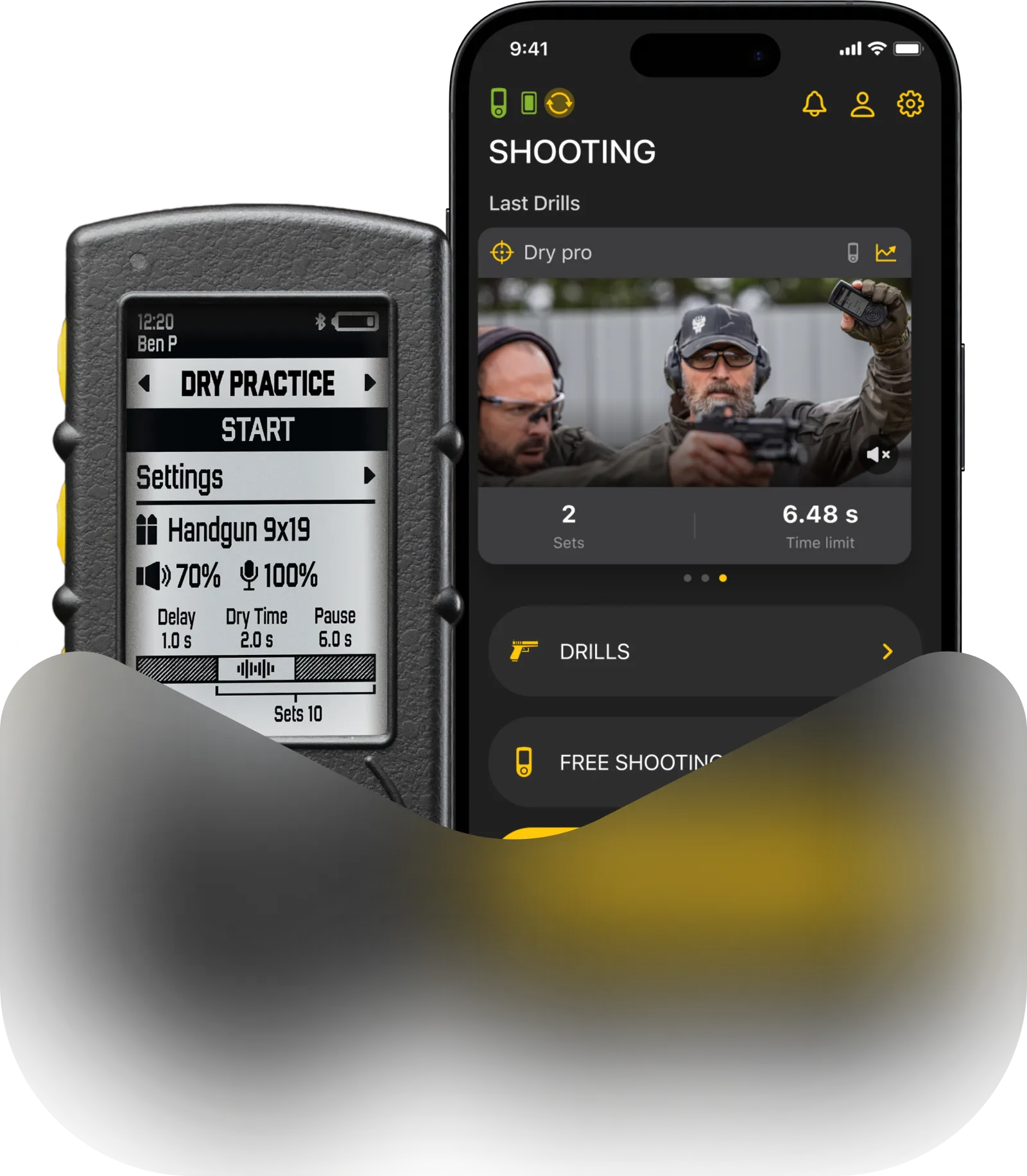
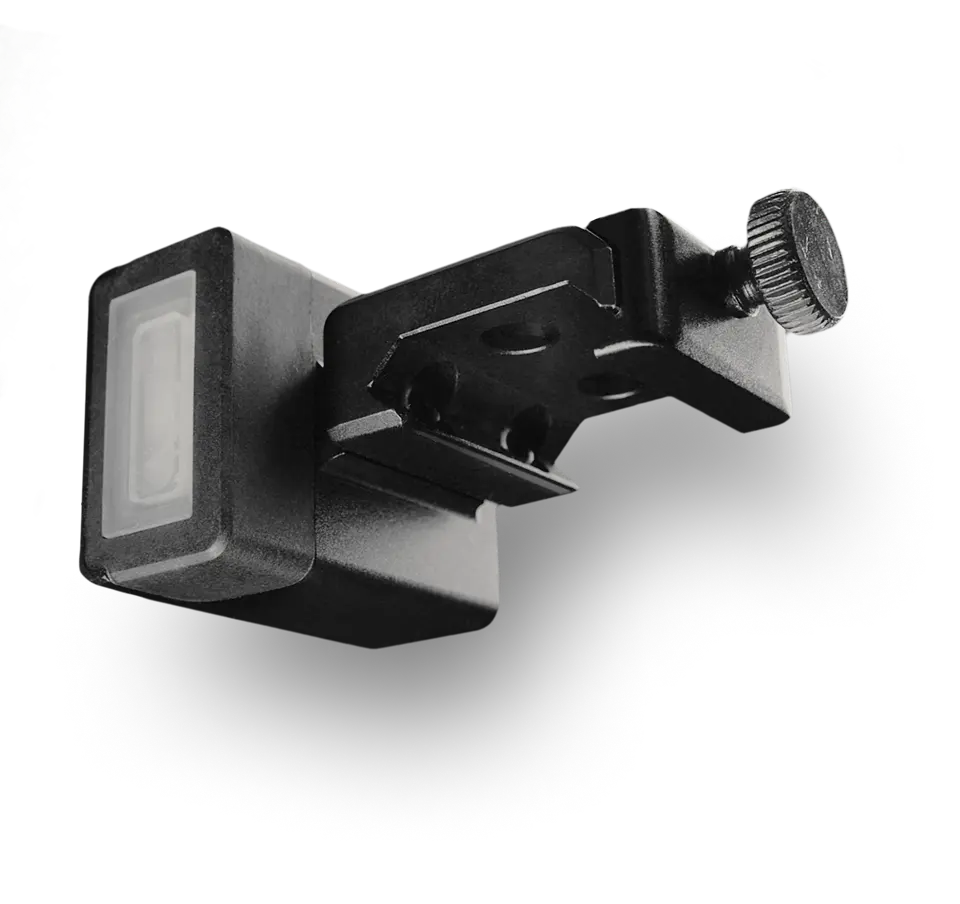
Stage timer will keep you informed of how much time you have left in your run. It will display the time on the display, and give you audible signals based on your settings. Starting a stage timer also starts your “shooting session”, which records all the stability data.
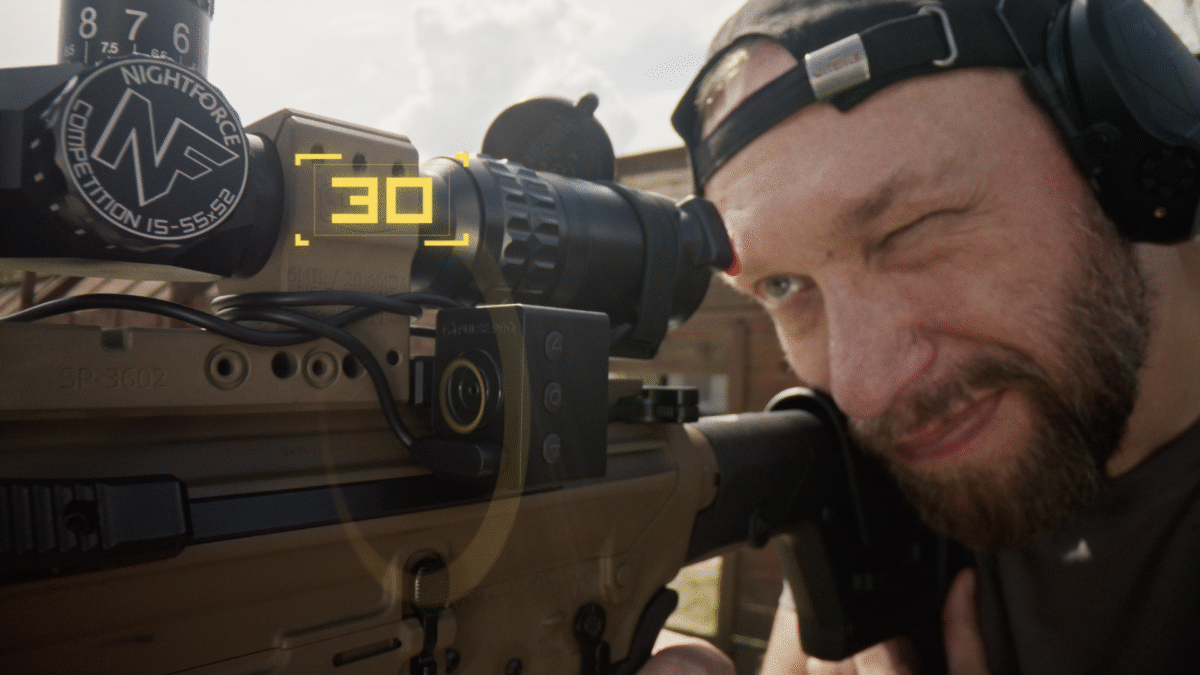
Stage timer is available in any of the shooting modes. If you need to see the stage time in a larger format, use Timer Mode on the device — it displays only the stage time in big, clear digits for better visibility.
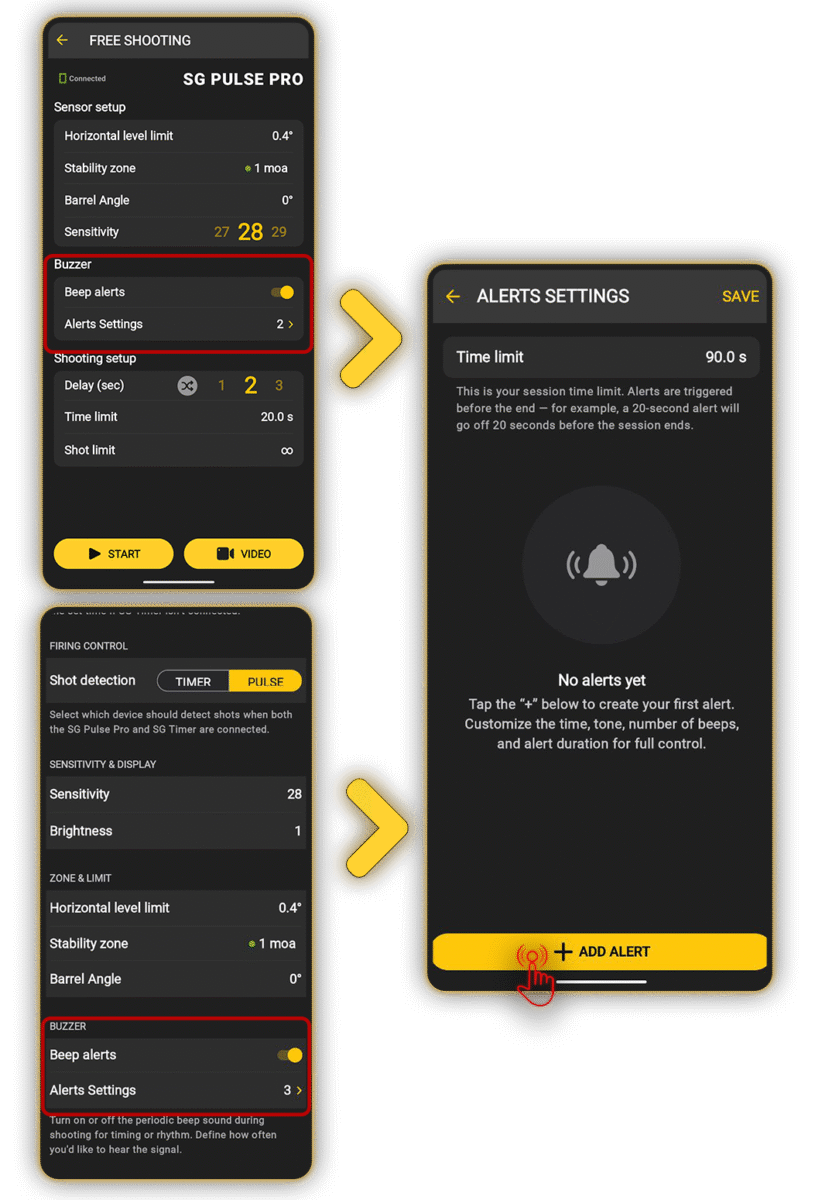
The time can be changed in the device itself through shooting settings, in the Drills app in Device – Settings – Stage Timer Presets, or on the “Free shooting” screen when the Pulse Pro is connected.
To use Stage Timer audio signals, enable the Audible Alerts toggle.
Tap ADD PRESET to create a new preset. You can name it, choose from the suggested durations (60, 90, 120, or 240 seconds), or set a custom time by tapping the time display in the top right corner.
Next, you can configure your audible alerts. They allow you to get a better understanding of how much time exactly you have left without looking at the display.
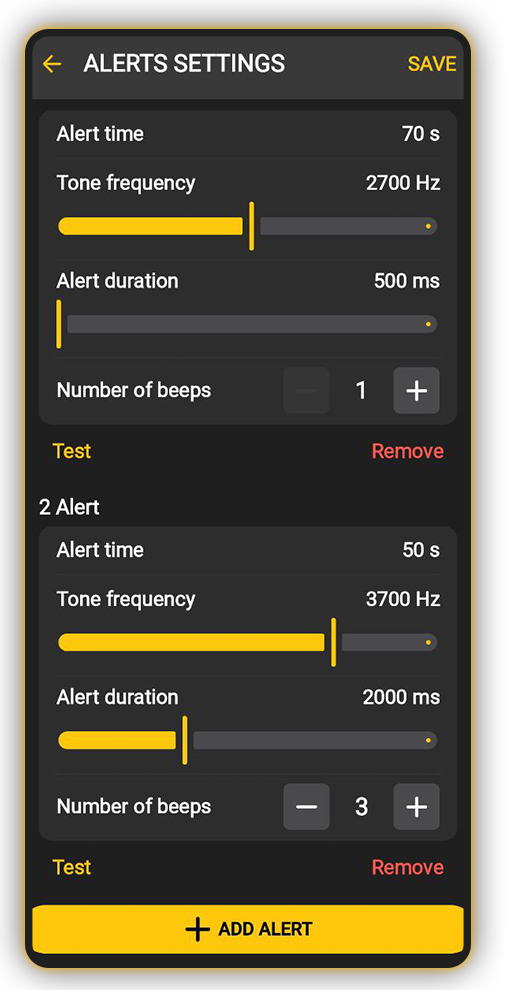
For each alert, you can specify the trigger time, tone frequency, alert duration, and number of beeps. Up to 10 alerts can be created. Alerts are triggered before the session ends — for example, a 20-second alert will sound 20 seconds before the end.
That way you can for example set alerts for 30 seconds, 20 sec, 10 and 5 seconds, and they all will sound different, thus giving you a perfect understanding of where you are timewise.
This setting displays a preset selection screen every time before entering any shooting mode.
To start the stage timer briefly press the middle button on the device. Stop it by holding the SELECT button for 1 second.
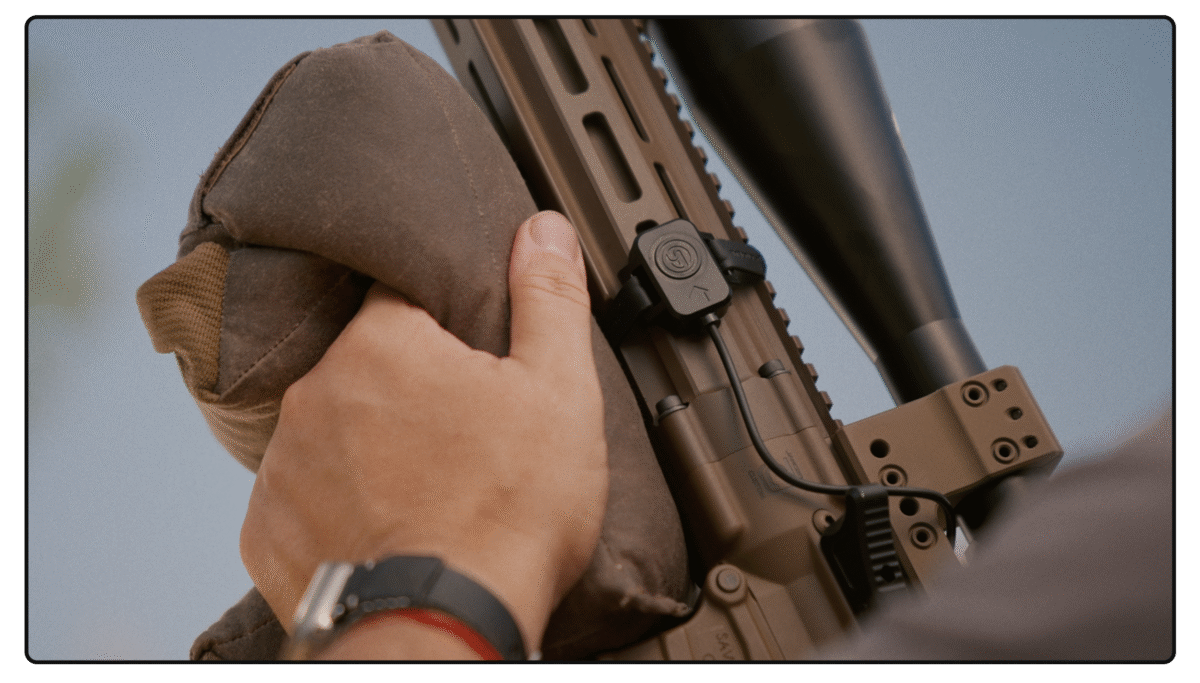
When a remote button accessory is connected, you can also start the stage timer by holding the button — the countdown begins once you release it. To stop, hold the button for 2 seconds.
Please note that alerts cannot be used if the session time limit is set to infinite. If an alert is set outside the session limit, it will be ignored. If two alerts will overlap, an error will occur.
Audible alerts can be toggled on or off in the Pulse Pro Shooting settings.
To select a preset on the Pulse Pro device, go to Settings > Shooting > Presets and choose the desired preset. It will be applied to all level operating modes.
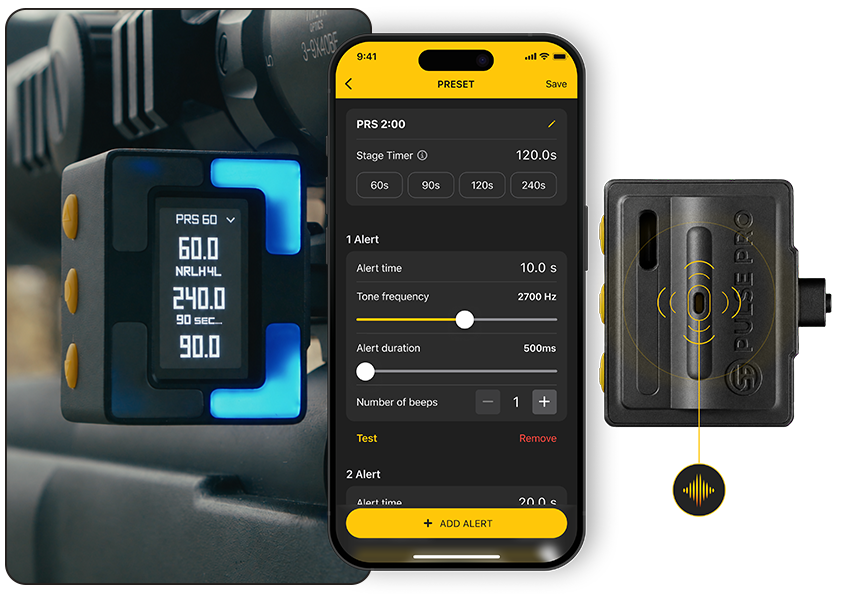
In the Shooting menu, you can also enable or disable Alerts and turn on Ask Preset. This setting displays a preset selection screen every time before entering any shooting mode.
Flick Start
You can start the stage timer hands-free. In Timer Mode, press and hold either the top or bottom button on the device for approximately 2 seconds.
A yellow indicator will light up, showing that the device is in standby mode. To activate the timer, perform a quick rotational flick with your rifle.
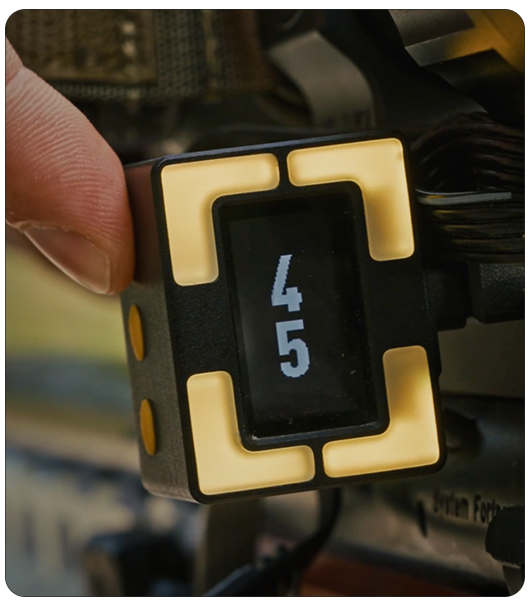
This feature is enabled by default and cannot be disabled.
You can adjust the sensor sensitivity to match your rifle’s weight and setup. To do this on the device, go to Settings → Flick Start and select your preferred sensitivity level.