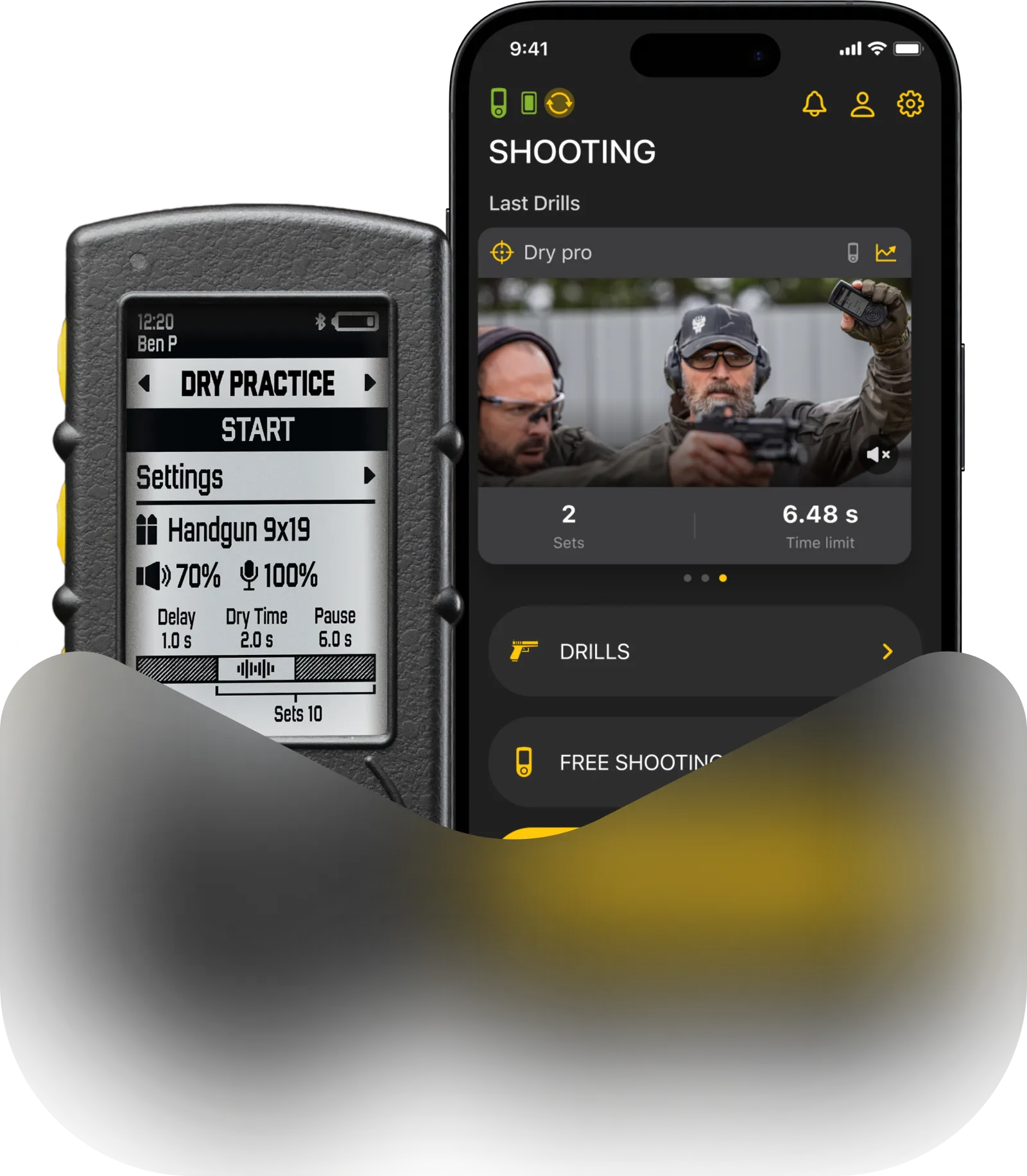
Free Shooting is the most simple and quick way to start training with SG Timer GO, in case you don’t need to track your performance in detail over a long period of time.
It allows you to set up simple par times, or just use the timer in a traditional way, where all you need is your shot times.
Your shooting history of shot times and splits will be saved in the Drills app Activity, and you can also record video with shot overlay here.
On the SG Timer GO you will see your current preset, delay before start and sensor sensitivity.
There are more settings that are not displayed on the screen, but needed to set up the preset. Learn more about these settings here .
You can modify some of the preset settings right in the SG Timer GO.
To enter settings for the current preset, quickly double press Button 1 or Button 2.
Use Button 1 or Button 2 to scroll through available parameters (Delay, Sensitivity, Volume, PAR).
Press the Start button to edit the parameter (side arrows will indicate you are in editing mode).
Use Button 1 and Button 2 to adjust the value.
Press and hold Button 1 or Button 2 to exit editing mode (the side arrows will disappear).
Press and hold Button 1 or Button 2 again to exit settings and return to the main training screen.
More settings are available through the Drills app.
You may also manage presets and settings in the Drills app. They will be assigned to presets and stored on the timer.
⚠️ Once presets are synced between the timer and the app, it’s not necessary to keep the timer connected to the app all the time.
Settings are divided into 2 categories — sensor setup, where you can control everything related to sensor and buzzer. And programming settings, which control the program the timer will use when giving signals.
Preset is a combination of “Sensor setup” settings and programming settings.
All settings are stored in presets. You can add up to 7 custom presets. They can be added, deleted and edited in the Drills app.
Learn more about Presets, Sensor and Programming settings here.
Shooting with SG Timer GO
To select Free Shooting mode, press and hold Button 1 or Button 2 to open the main menu, scroll to “Free Shooting”, and press Start to select it. On the main training screen, single press Button 1 or Button 2 to switch between presets.
To start a new session, press the Start button. During the shooting session, you will see the shot count, last shot time, first shot time, and best split time on the display.
To end/stop the session, press Button 1. After finishing your session, you will see the results screen showing all your shots and split times. Use Button 1 or Button 2 to scroll through the shot list.
You can also see all session details saved in the Drills app in “Activity”.