Introduction
Dry fire Drills menu allows you to create custom dry fire drills and monitor the progress of this specific drill over time via extended statistics and graphs in the Drills app thanks to Smart mode.
Or train with regular PAR time signals in classic dry fire mode.
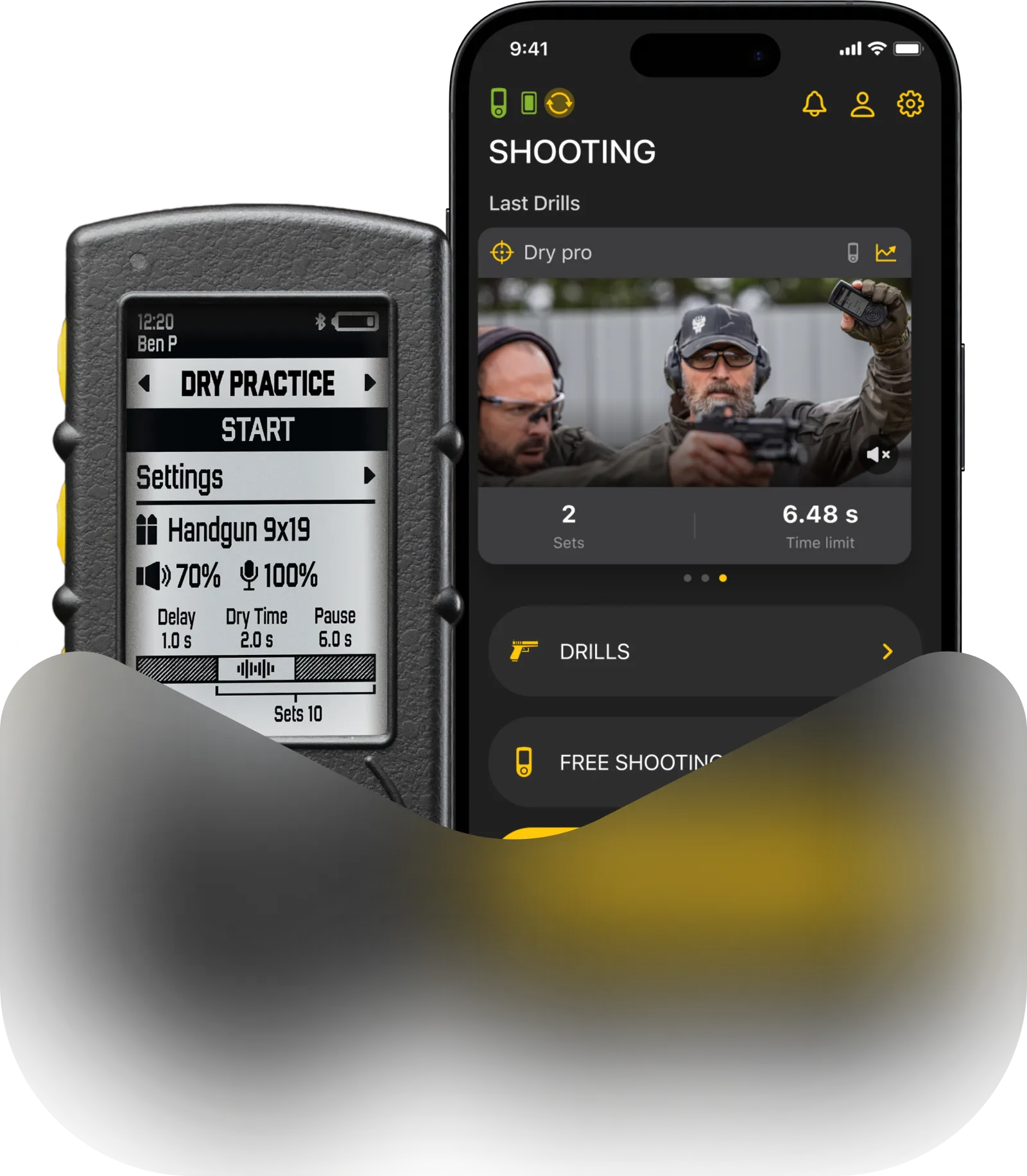
To select Dry Fire Drills mode, press and hold Button 1 or Button 2 to open the main menu, scroll to “Dry Fire Drills”, and press Start to select it. On the main training screen, single press Button 1 or Button 2 to scroll through your drills.
Below the mode name, you will see Delay (in the down-left corner), Time limit and Number of repetitions (in the down-right corner).
Creating a drill
General setup. Creating a Dry Fire Drill is very similar to creating a Shooting practice. The key difference from Shooting practice is that Dry fire doesn’t have the complex par time setup. You can set only 1 set and number of repetitions of this set.
Open the Drills app and connect your SG Timer GO.
To create a new drill tap “+ New Drill” to open the setup screen. Customize it or use the default settings.
Choose Drill type: Dry Fire or Shooting.
You can switch between these modes, but only during the initial setup. Once the Drill has been completed for the first time, this option will be locked, and only the selected mode will be displayed.
To personalize your drill, enter a name, optionally add a description, and upload one photo or video (up to 1 min).
Classic vs Smart Mode and PAR
Classic mode. In Classic mode the timer will just cycle in repetitive PAR mode without registering any sounds.
For example:
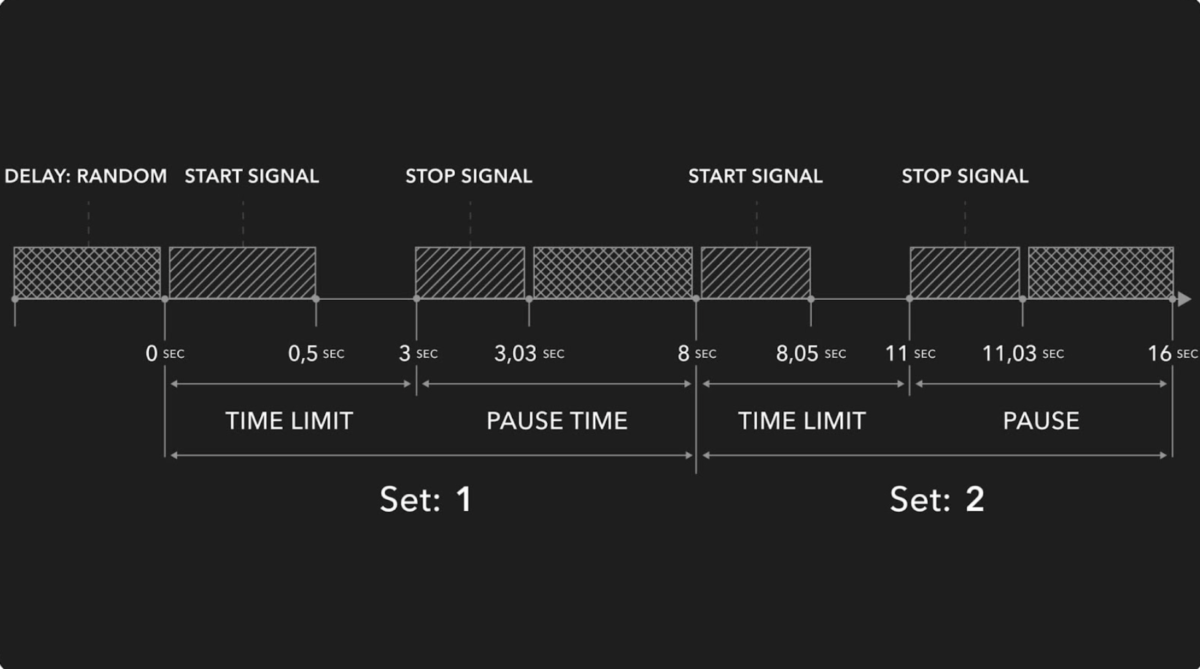
Time limit – 3 sec
Pause time – 8 sec
Delay – random
Repetitions – 5
The timer will give a start signal, count down 3 seconds and give an end signal when the time is up. Then it will count down 8 seconds to give the time to reset, and start counting down random delay interval (1-4 sec) to make the start signal unexpected for you. Then it will give a start signal again and repeat the sequence 4 more times.
⚠️ In this case you will not record your actual dry fire time. You will need to rely on your own perception to decide whether you made it before the beep or not, which is not very reliable.
⚠️ Sessions trained in classic mode will not appear in drill stats in the app, as there’s nothing to track.
Smart mode
In Smart mode, the timer will register the actual sound of a hammer fall, or any other short and distinct sound you want to capture in your training.
During practicing, the timer may pick up other unwanted sounds, like reload, slide, gear rattle, etc. To avoid this, use the “Waiting time” setting in “Sensor setup”. During the practice, after completing the final action (pulling the trigger), you need to wait the “Waiting time” period without making any noises until you hear the end signal.
For example:
Time limit – 3 sec
Pause time – 8 sec
Waiting time – 2 sec
Delay – random
Repetitions – 5
The timer will give a start signal and count down 3 seconds.
Lets say you pull the trigger at 3.8 sec.
It will not give you an end signal after 3 sec. It will give a confirmation signal only once the Waiting time interval passes after the last sound you made. In this case – at 5.8 sec, and it will show that you were 0.8 sec late.
To learn how Waiting time works, continue reading this manual.
After the timer gives you a confirmation signal, it will count down 8 seconds to give the time to reset, and start counting down random delay interval (1-4 sec) to make the start signal unexpected for you. Then it will give a start signal again and repeat the sequence 4 more times.
This allows you to see the actual time it took you to pull the trigger, reload, etc., instead of guessing whether you pulled the trigger before, during or after the end signal in Classic mode.
⚠️ During Smart dry fire, it is recommended to keep the timer on the belt facing the weapon or on a table right under the weapon. You may need to test and adjust the sensitivity to your trigger. Try to look at the timer display when you pull the trigger to make sure the timer registers the sound.
⚠️ You may change the mode during your training, but sessions made in classic mode will not appear in drill stats in the app, as there’s nothing to track.
Waiting time
“Waiting time” is a safe zone period. During dry fire there are many extraneous sounds like reload, slide or gear rattle, which may be perceived by the timer as a hammer fall. Since hammer fall is very similar to all those other sounds in terms of loudness and sound, it makes it impossible to distinguish electronically.
Therefore, the timer counts down the time from the last sound it registered, and if it doesn’t register any more sounds during this period, it acknowledges this sound as a hammer fall and ends the set.
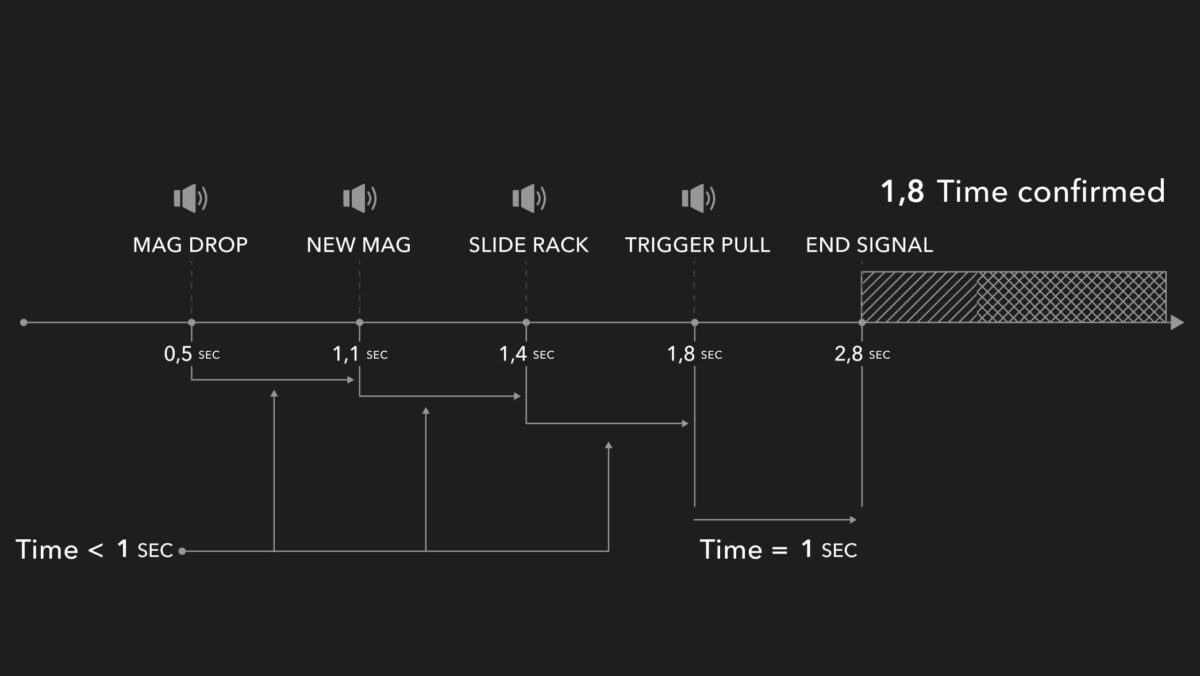
For example, let’s take a reload drill. Waiting time is set to 1 second.
The mag drops at 0.5 sec — timer registers it, but does not acknowledge it as a finish yet, starts counting 1 second.
At 1.1 sec you insert a new mag. Timer registers the sound, but doesn’t acknowledge it, because it’s been less than 1 second from the last sound. It starts counting 1 second again.
1.4 sec — slide racking sound. Same as with the previous sound.
At 1.8 seconds you pull the trigger and freeze for 1 second after that. Timer registers this sound and starts counting 1 second. And since you didn’t make any more sounds after the trigger pull it acknowledges this sound and gives an end signal.
This way you don’t have a pile of unusable timecodes — only the actual time of execution.
You can also program the timer to your needs by adjusting the waiting time.
Dry firing and viewing results
During Training in classic mode on the screen you will see:
Session phase (time limit / pause time / delay)
Reps count
Time left in current phase
During Training in smart mode on the screen you will see:
🔸 Reps count.
🔸 Session phase. Waveform icon means the time limit is active and the timer is registering sounds. Pause icon means pause time phase.
🔸 Sounds captured.
🔸 Time left in the current phase.
🔸 Checkmark means pause time phase – you met the goal. Cross means pause time phase – you didn’t meet the goal.
🔸 Delta between the goal and the execution time.
🔸 A big number in the center of the screen means the final time confirmed by the timer.
If you dry fired in classic mode, no results will be shown on the timer. The session will be saved in the activity on the timer, if you filmed a video of this session.
If you dry fired in smart mode, after the drill is finished you will see the screen with all your reps. Rep number, your execution time, and on the right is the delta between your time limit and execution time.
For example if the time limit was 3 sec, and you pulled the trigger in 2.7, the timer will show -0.3.
Your results will be sent to the Drills app once you connect the timer to it. Learn more about “History” tab here.
Use the Function button to scroll the results down. Press and hold the Function button to return to the main screen.
⚠️ It is not necessary to have the Timer always connected to the Drills app. All your history and changes you made to drills will appear in the Drills app once you connect them.
Learn more about Drills statistics in the app here.
“