Introduction
Shooting Drills menu allows you to create custom shooting drills and monitor the progress of this specific drill over time via extended statistics and graphs in the Drills app.
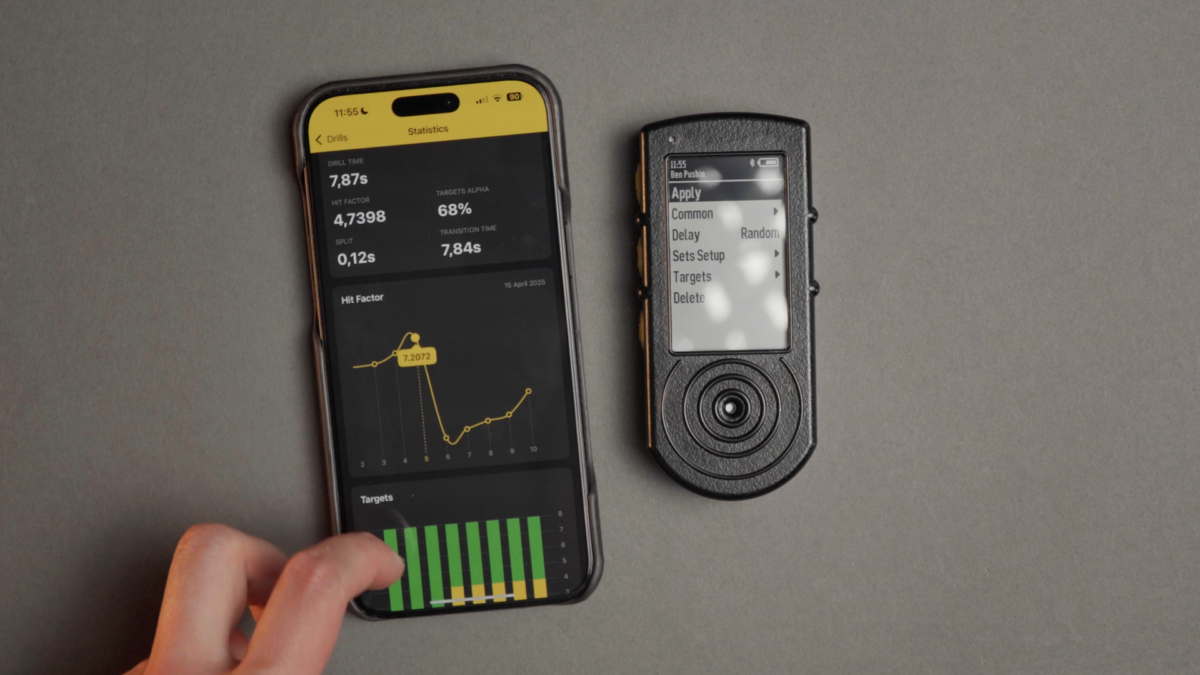
To learn more about creating and using drills in the Drills app, go to this Guide.
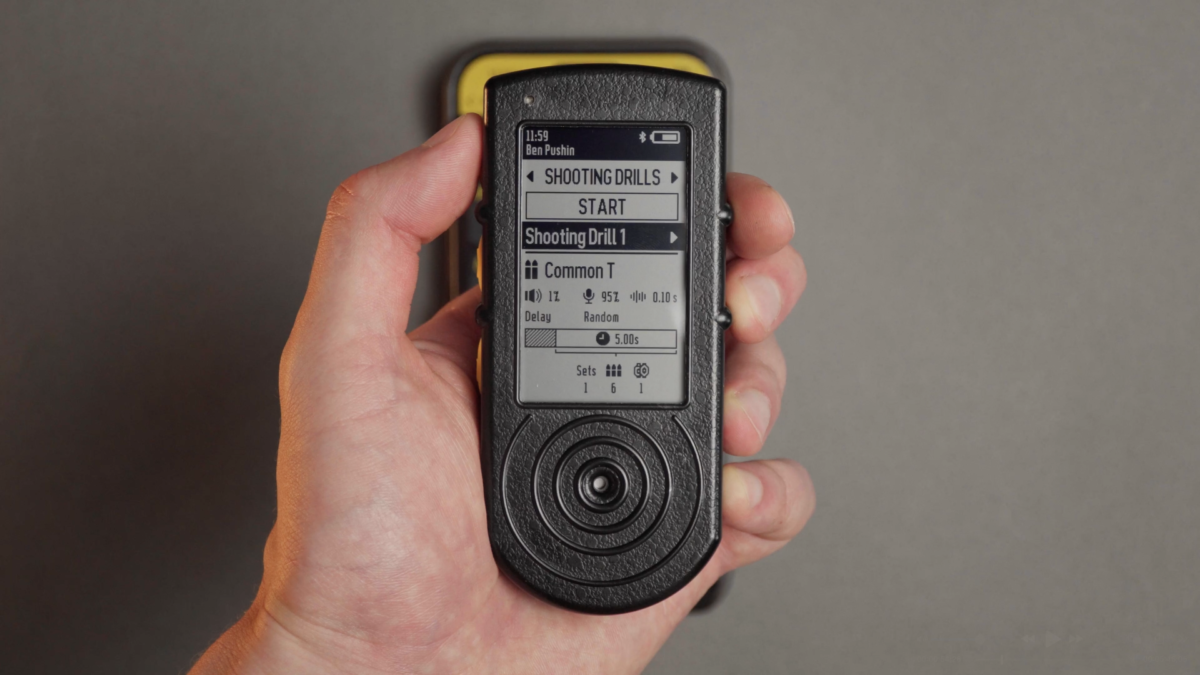
On the home screen you will see:
– Selected Shooting drill
– Selected Gun type
– Buzzer volume
– Sensor sensitivity
– Echo filter
(To learn more about these settings go to Presets and Gun types)
Delay before start.
Total time of the Drill including all sets and pause time intervals.
Number of sets.
Shots is the total number of rounds set in all sets.
Number of targets.
Creating a drill
You can create a drill on the SG Timer or in the Drills app.
To learn more about creating and using Drills in the app, go to this Guide.
To create a new Drill select “Add more”.
The Drill will get a default name. To change it, use the Drills app. The name will change on the timer too.
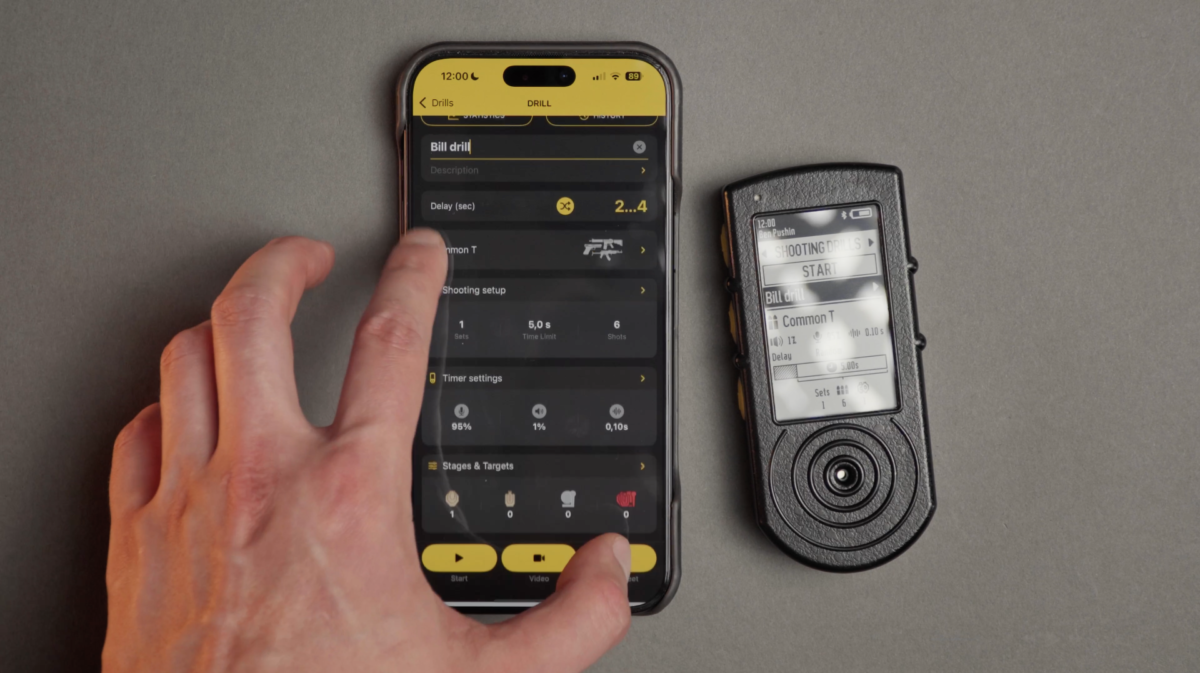
⚠️ If you delete the Drill on the timer, it will delete in the app and vice versa. Same applies to all settings and changes that you do. Timer and Drills app have 2 way synchronization.
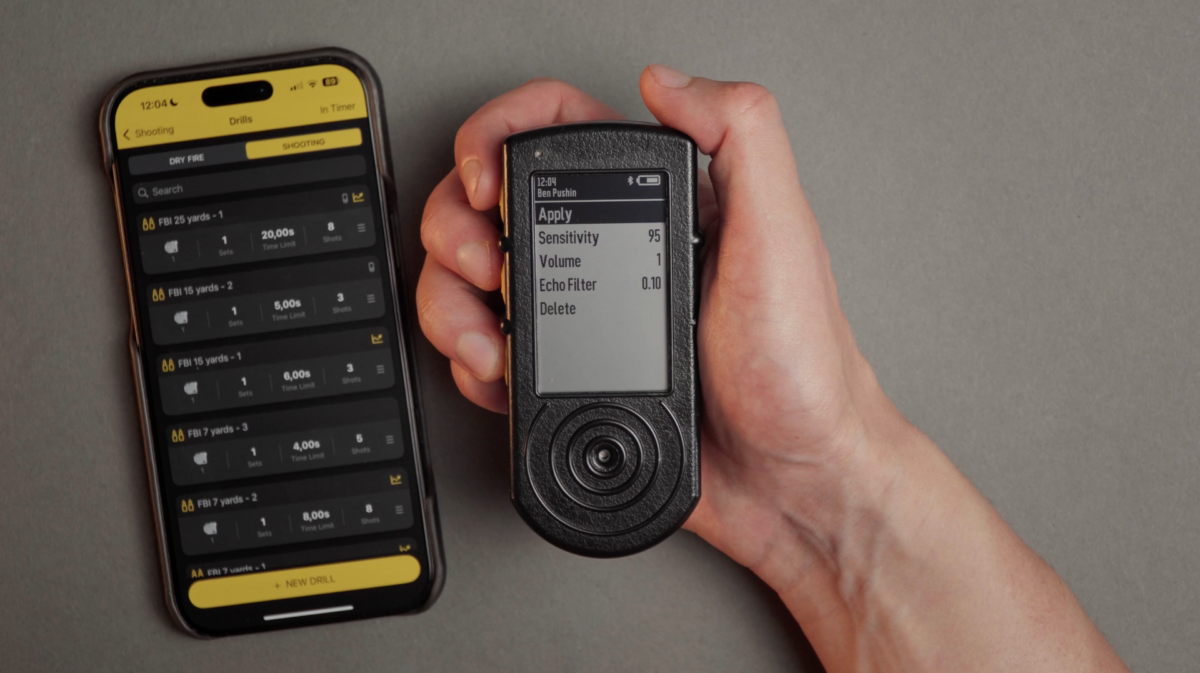
Select your Gun Type. Gun type is a combination of sensor settings like sensitivity, volume and echo filter.
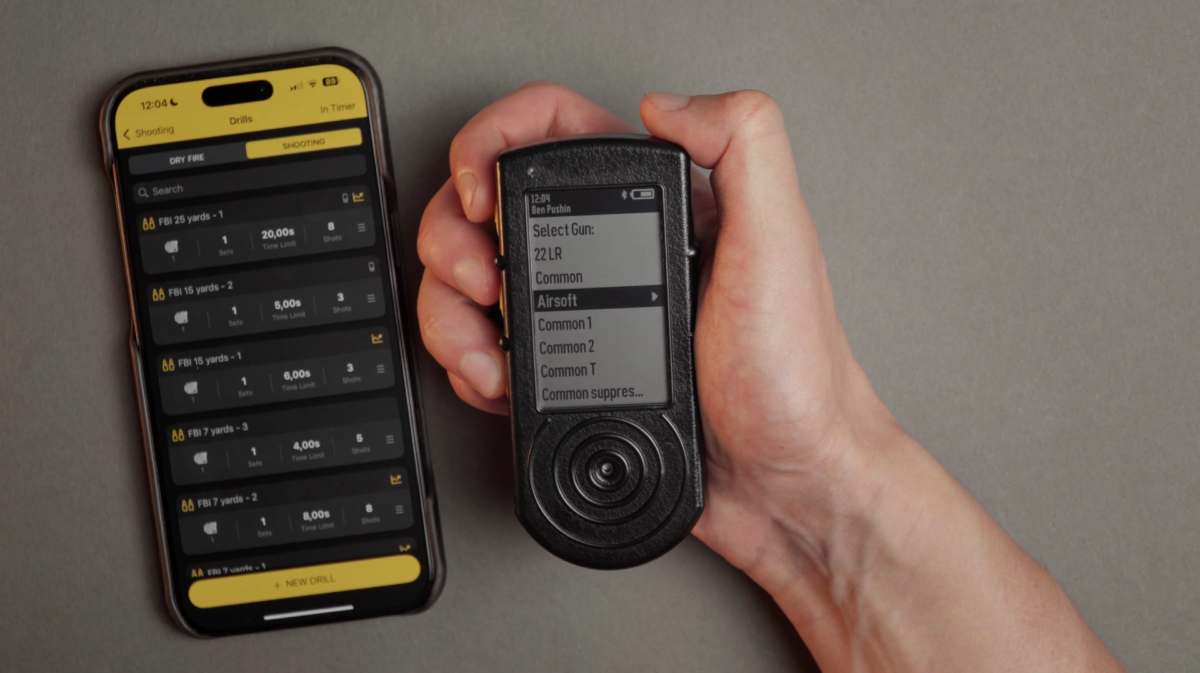
Gun types can be created only in the Drills app. On SG Timer you can only modify existing ones. Note that it will overwrite settings in this gun type including in the Drills app.
To learn more about these settings go to Presets and Gun types
Choose the delay between instant, random or custom.
PAR setup
PAR setup is the program the timer will follow.
It’s basically the same sets, shots and time limits as in Free Shooting, but now you can program each set individually, allowing you to create complex shooting courses.
Before you could only set a shot and time limit, and program the timer to repeat this sequence. You now have the flexibility to program each individual string to your liking.
For example:
Set 1
Time limit – 5 sec
Shots limit – 6
Pause time – 10 sec
Set 2
Time limit – 3 sec
Shots limit – 4
The timer will give a start signal and count down 5 sec for you to shoot. If you make 6 shots under 5 sec, the timer will automatically give an end signal and start counting down 10 sec for you to reset (it will not capture shots). Then it will give a start signal again and count down 3 sec. After 3 sec it will give an end signal and finish the drill, assuming there are no more sets.
This will count as 1 shooting session.
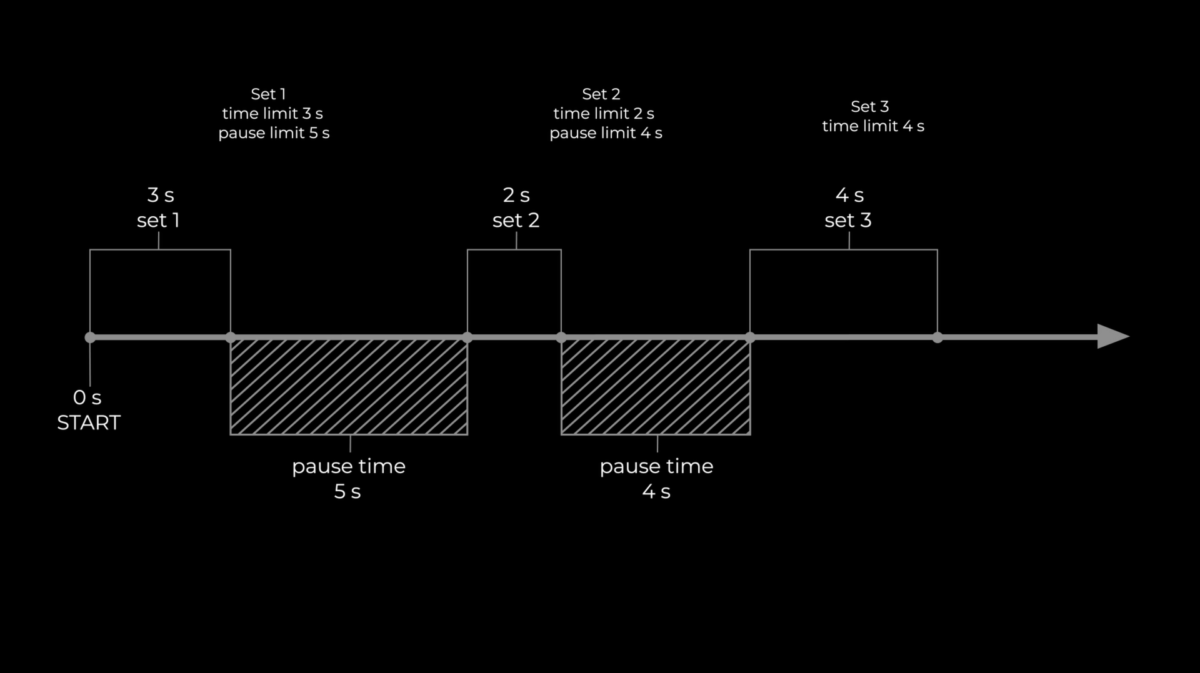
⚠️ For example if you set a 5 sec time limit and 6 shots and don’t make all shots in time, the timer will give an end signal after 5 sec, but will continue to listen for shots for 2 more seconds for penalty shots. The set will not end until you fire all shots or wait for 2 seconds after the last shot.
If you haven’t set the shot limit, the timer will continue capturing shots as long as you continue shooting.
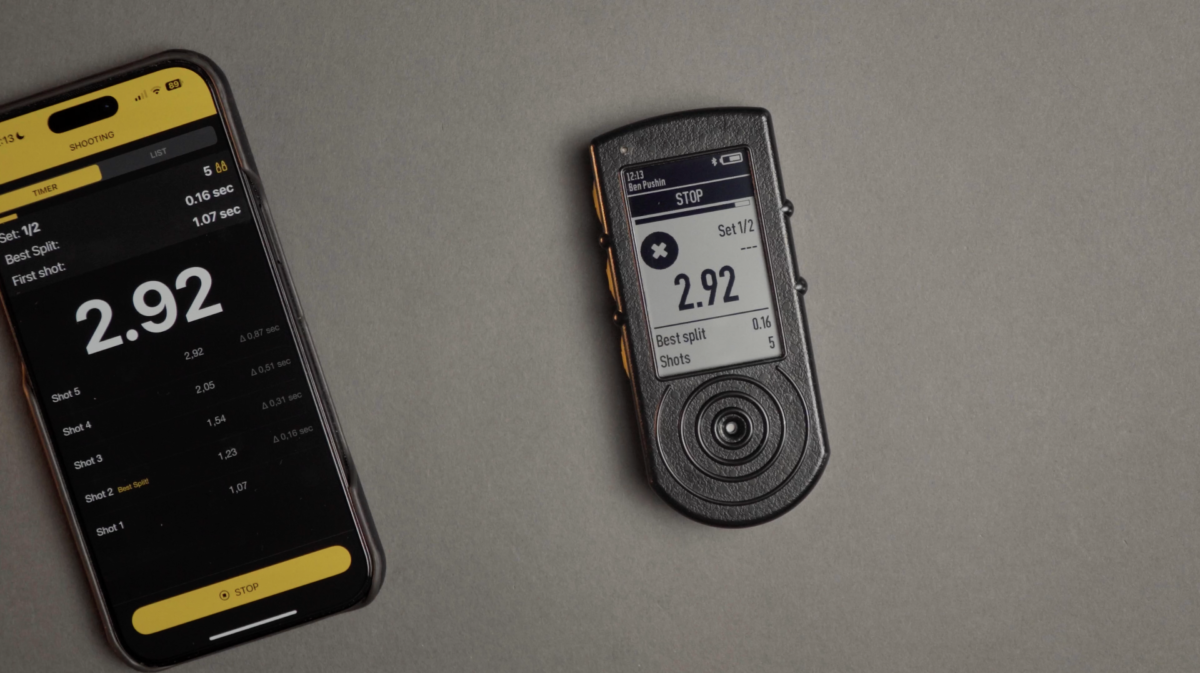
⚠️ Always set either a shot or time limit in all sets. Only the last set may be set to infinity, in this case you can stop the timer manually and it will end the Drill.
Targets
Choose the targets you want to shoot. If you’re planning to shoot one target multiple times, count it as one target.
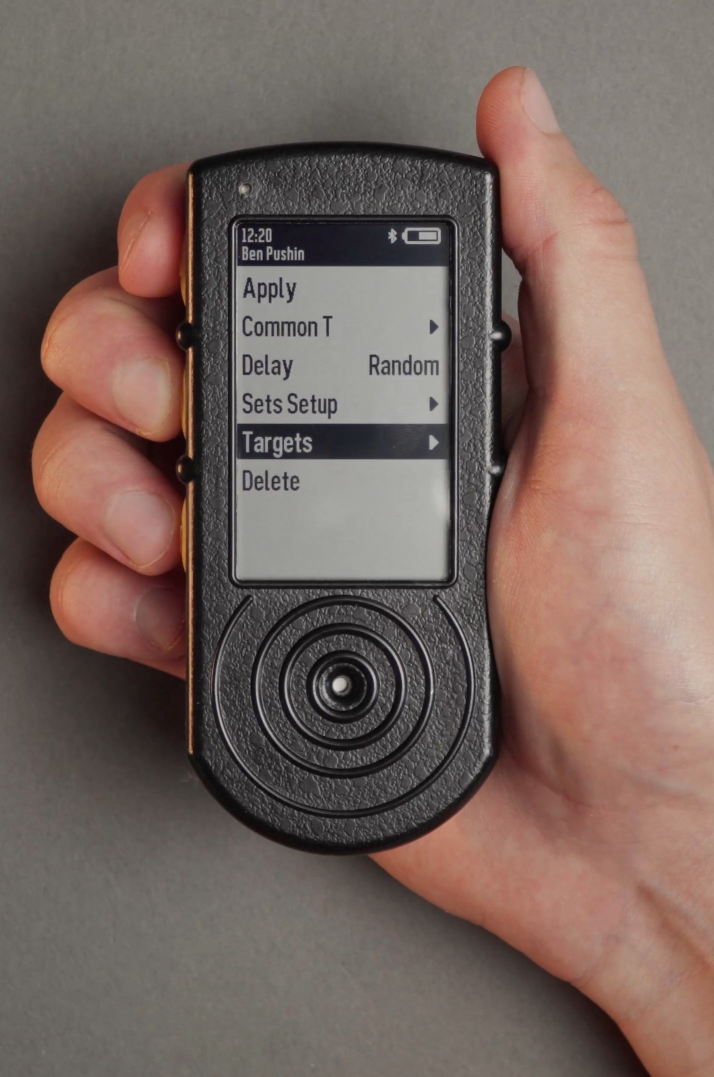
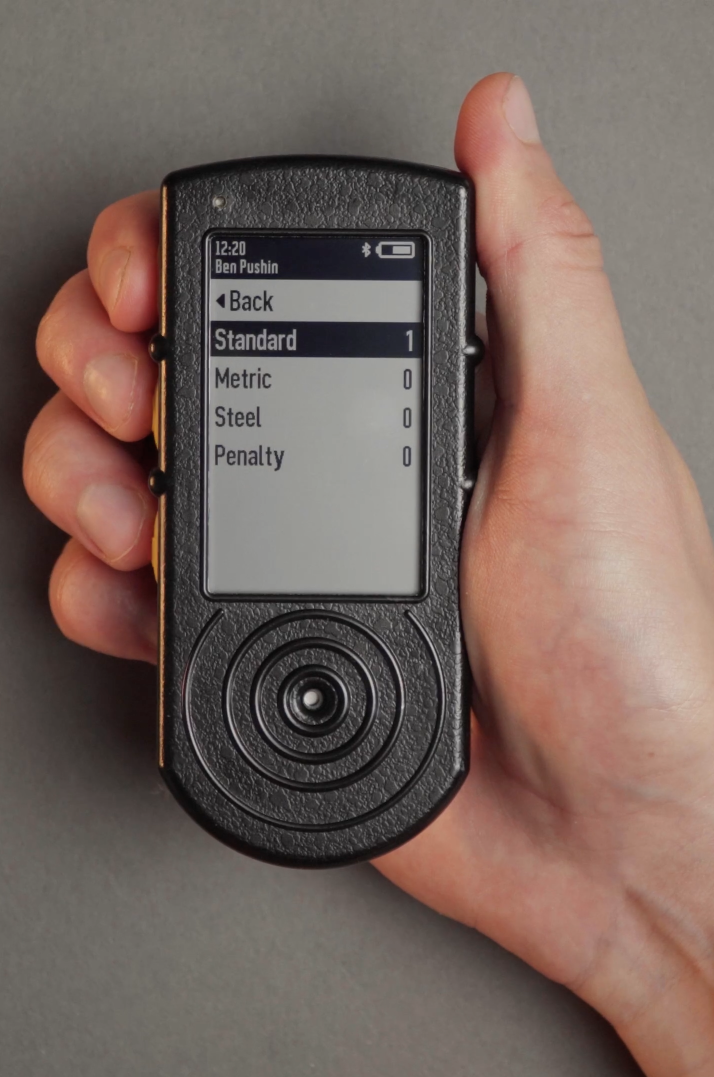
⚠️ If you don’t select the targets, the Drill will be incomplete and will not track your accuracy and hit factor in the app.
Shooting and viewing results
After you finish shooting you will see the scoresheet screen where you can mark hits. If you don’t see this screen, you must have not selected the targets when creating the drill.
Mark the corresponding hits with a middle button. To reset the number, press and hold the middle button.
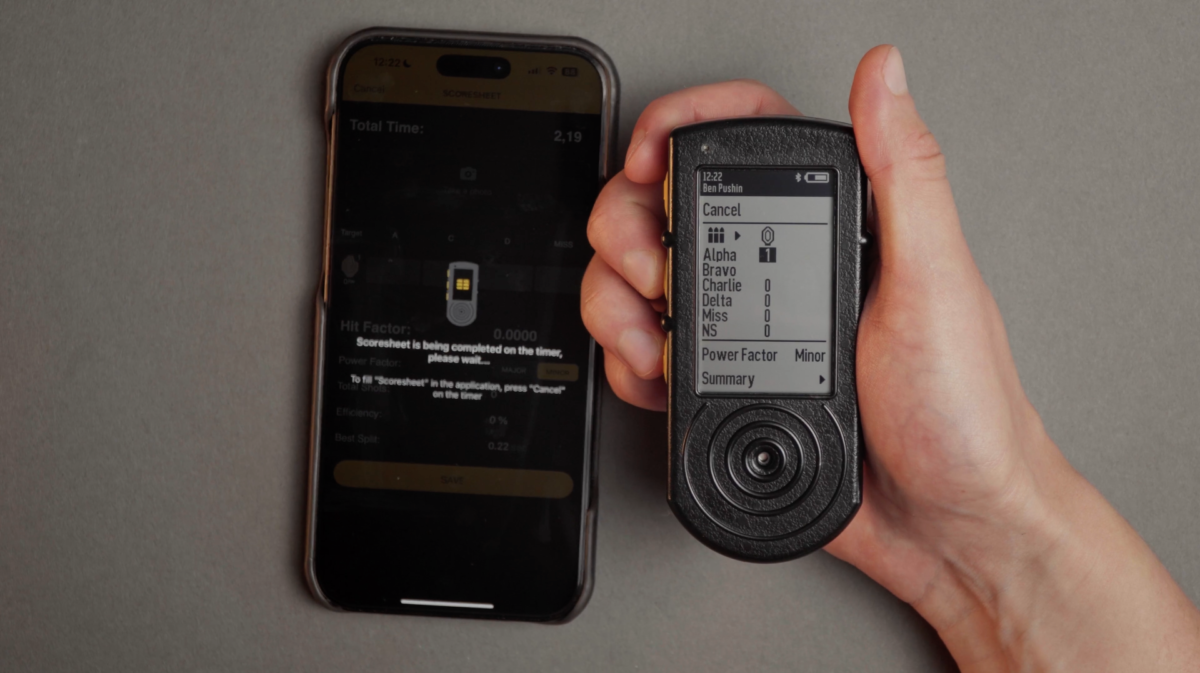
You can change the Power factor between Minor or Major, it will affect the way timer calculates Hit factor.
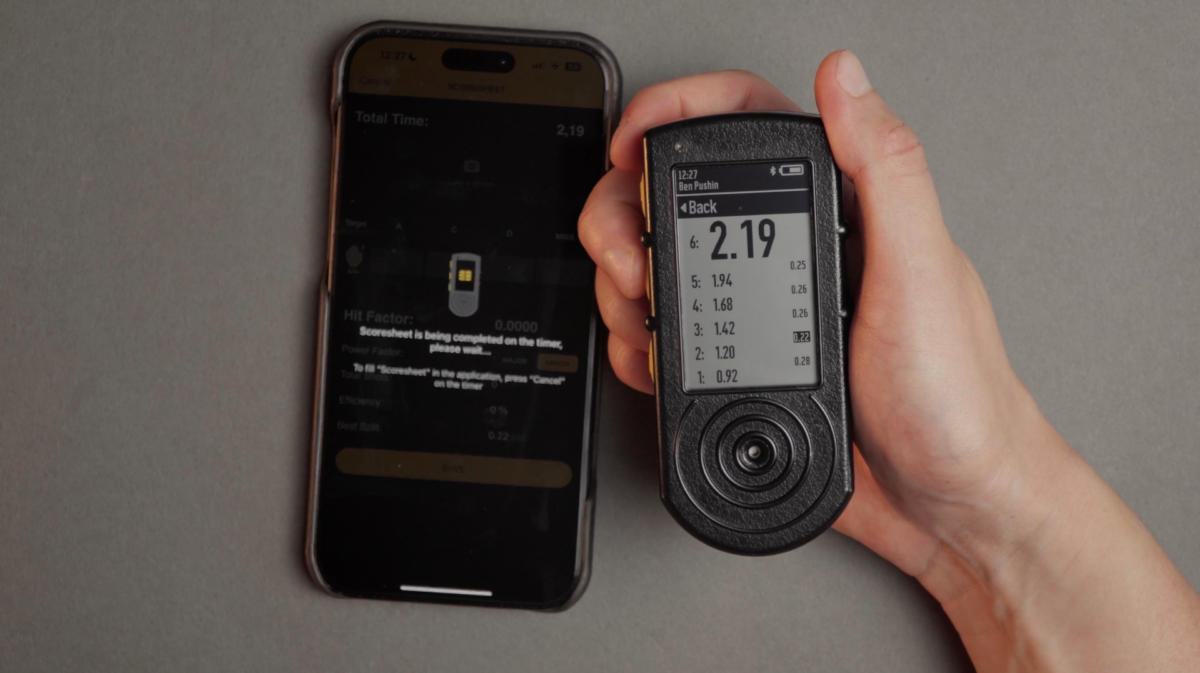
To review the shot list, select the bullets icon.
Scroll to “Summary” and select it, the timer will show comprehensive session results.
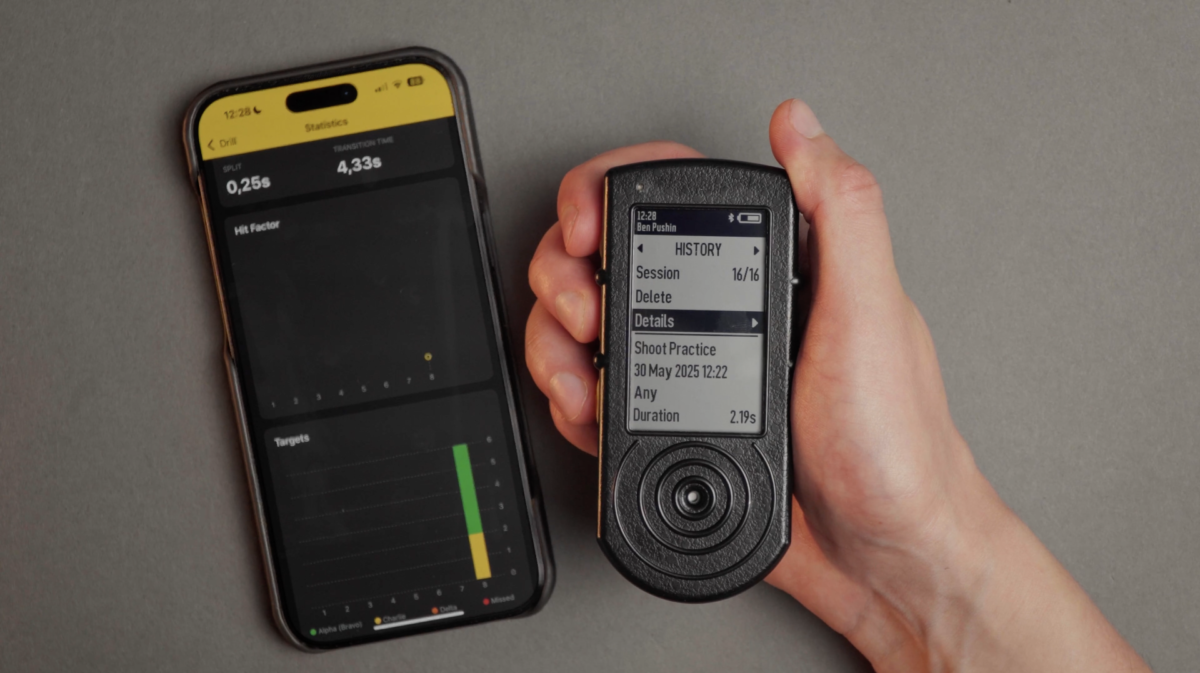
Select “Save” to end the drill.
Your results will be saved in “History” and sent to the Drills app once you connect the timer to it.
Learn more about the “History” tab here.
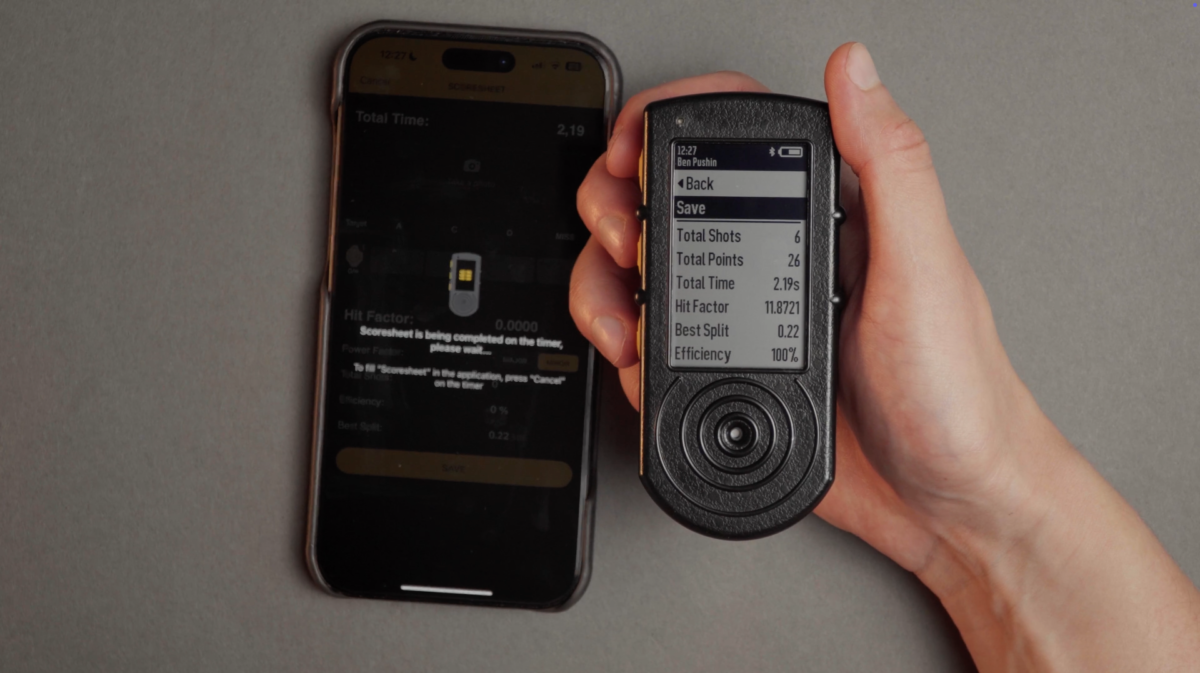
⚠️ It is not necessary to have the Timer always connected to the Drills app. All your shooting history and changes you made to drills will appear in the Drills app once you connect them.
Learn more about Drills statistics in the app here.