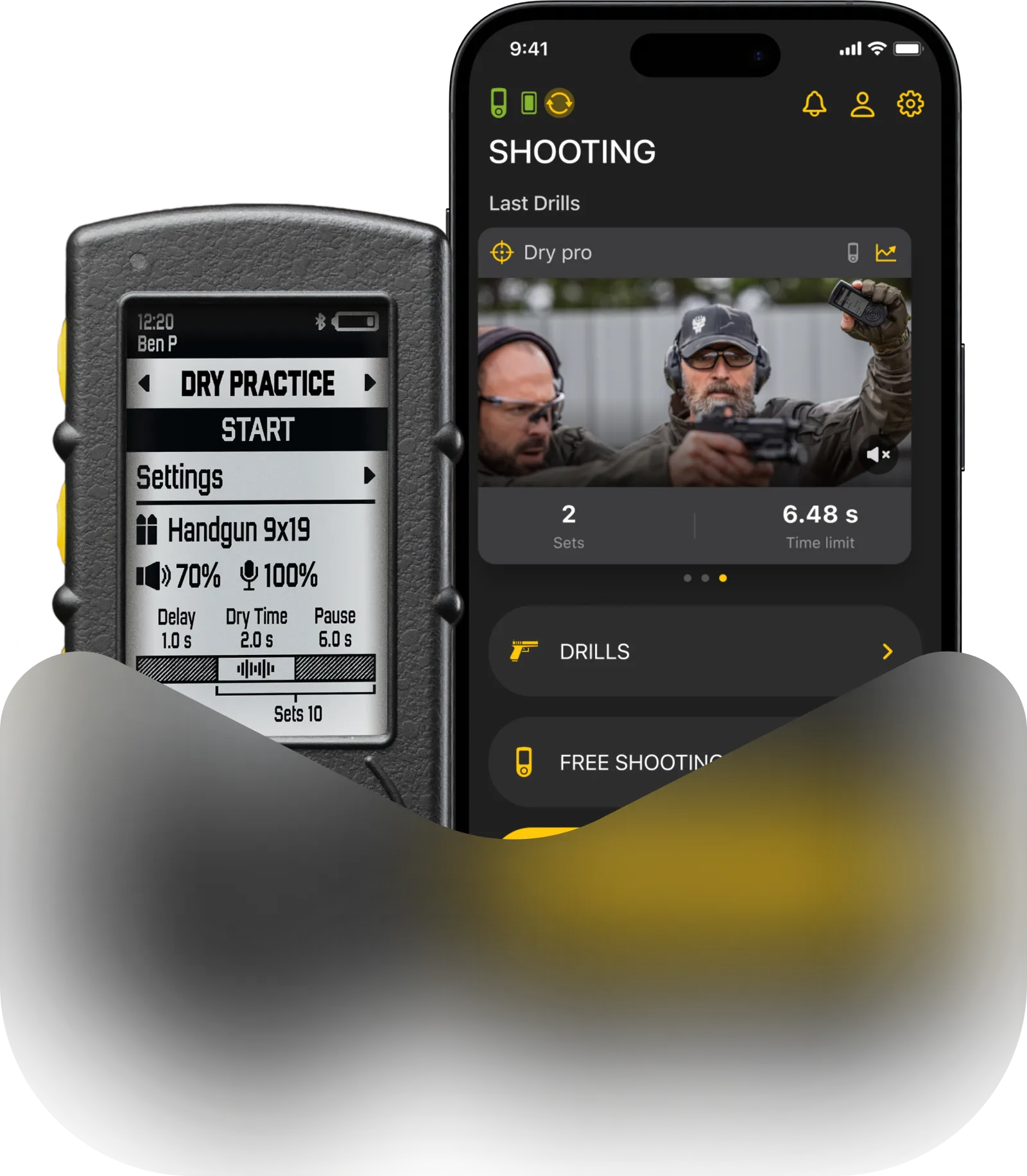
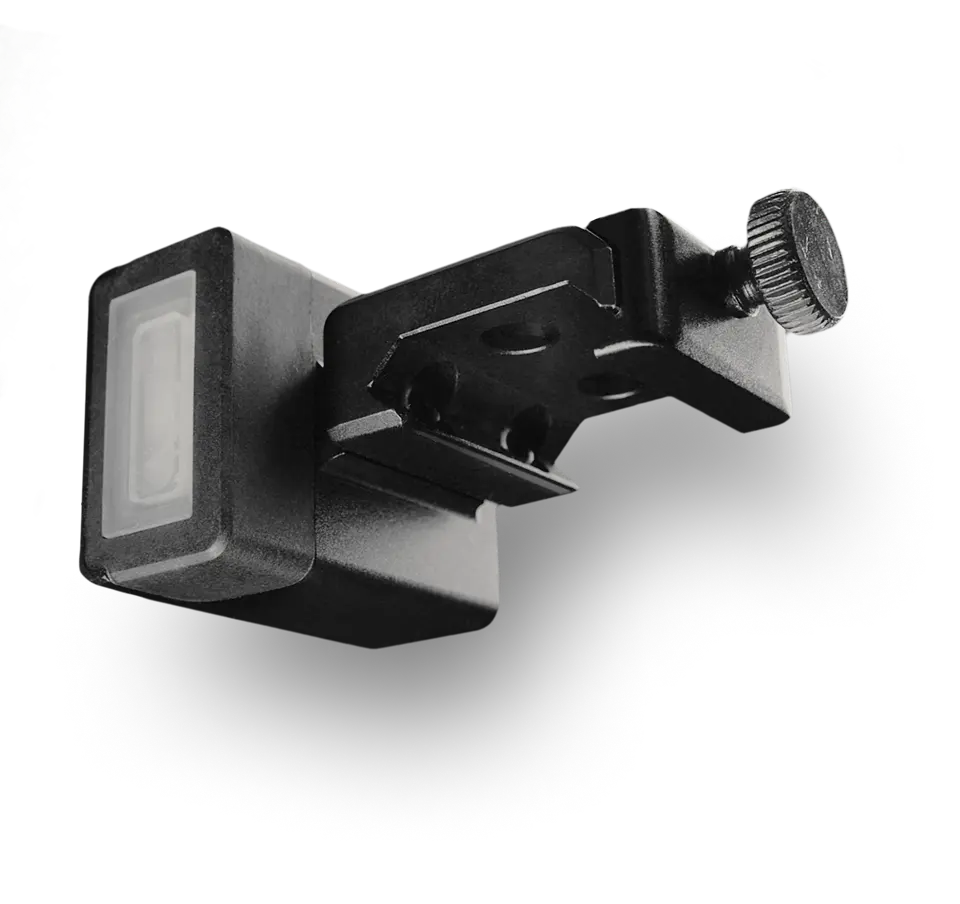
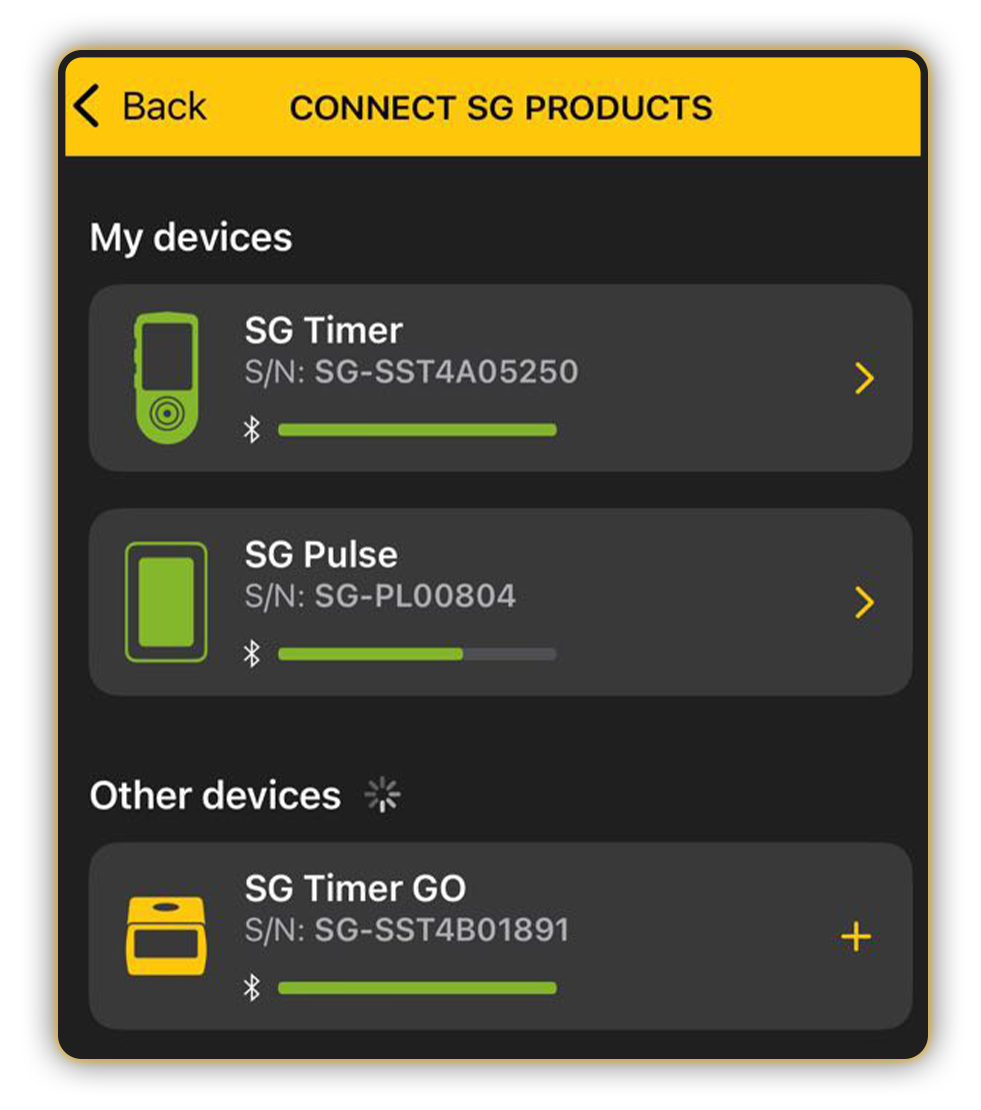
Make sure you have the latest version of the Drills app. To update your firmware, please connect your device via Bluetooth. Click on the icon in the top-left corner and choose a device to sync: SG Timer, SG Timer GO,SG Pulse or SG Pulse Pro. Please note that the device must be turned on, and Bluetooth on your phone must also be active.
First connection
The pairing process follows the same logic for all Shooters Global devices.
First, you need to put your device into Bluetooth Pairing mode.
For SG Timer and SG Pulse Pro:
Go to Settings → Bluetooth → Pairing mode → On.
For SG Timer Go:
Power on the device by pressing and holding the main power button.
Keep holding the button until the Bluetooth icon starts blinking — this takes about 4 seconds.
The device is now visible and ready to pair.
For SG Pulse:
Press and hold the power button to turn the device on.
Keep holding until you see the blue indicator blink four times.
This means Bluetooth Pairing mode mode is active.
Once Pairing mode is enabled, you’ll have 60 seconds to connect the device to your smartphone.
In the Drills App, select your device from the list.
You will then see a Bluetooth pairing request — both in the Drills App and on the device screen. For SG Pulse, the pairing request appears only in the Drills App, since the device does not have a screen.
To complete the connection, you must confirm pairing on both the smartphone and the device.
Once confirmed, the device is connected and ready to use.
Switching smartphones
If you need to connect your device to another smartphone, simply enable Bluetooth Pairing mode again and repeat the pairing process.
On SG Timer and Pulse Pro, you can also see how many smartphones are currently paired with the device in the device menu. These devices support pairing with up to 8 smartphones.
Please note: Devices that were previously paired with a smartphone will connect automatically when the Drills App is opened. Pairing mode is not required.
SG Timer Go and SG Pulse support pairing with one smartphone at a time.
You can remove all paired smartphones by selecting Unpair All in the Bluetooth menu on the device itself — this option is available on SG Timer and SG Pulse Pro.
For SG Timer Go and SG Pulse, forced unpairing happens automatically when Bluetooth Pairing mode is enabled.
After that, to reconnect the same smartphone, you must:
• Forget the device in your phone’s Bluetooth settings
• Enable Bluetooth visibility on the device
• Pair again from the Drills App
Also read:
You can see the connection status in the top-left corner:
🔸 Not connected
🔸 Syncing data (circular arrows)
🔸 Connected
If you haven’t connected it for a long time, syncing may take a bit longer, because it takes time to transfer all the new training data from the device to the app.
If you change the settings on the timer, they will change in the application after synchronization, and vice versa. Only the settings that were applied last remain relevant.
When your device is connected, tap on the timer menu in the app and tap “Update”. If the update is available, tap “Install” and follow the instructions on the screen.

Don’t disconnect the timer and don’t lock the phone during the update. The update may take up to several minutes.
Now, you have successfully connected your device to the app and updated the firmware.