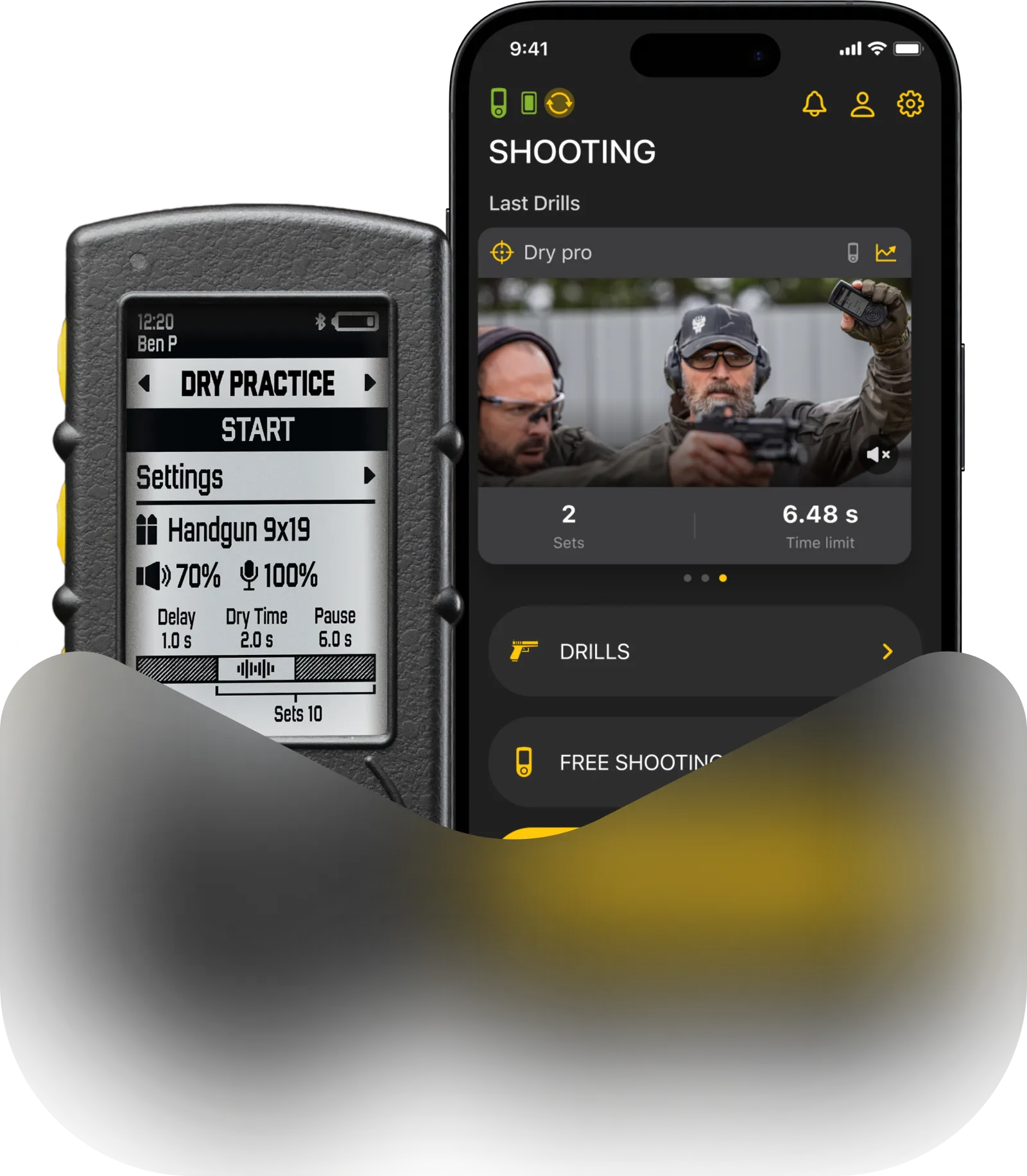
Match mode is a mode for competitive shooting. Here, you can create your own matches and compete with your friends.
This is a local event and is not visible to other shooters unless you invite them. In Match Mode, you can run the entire competition using just a single timer.
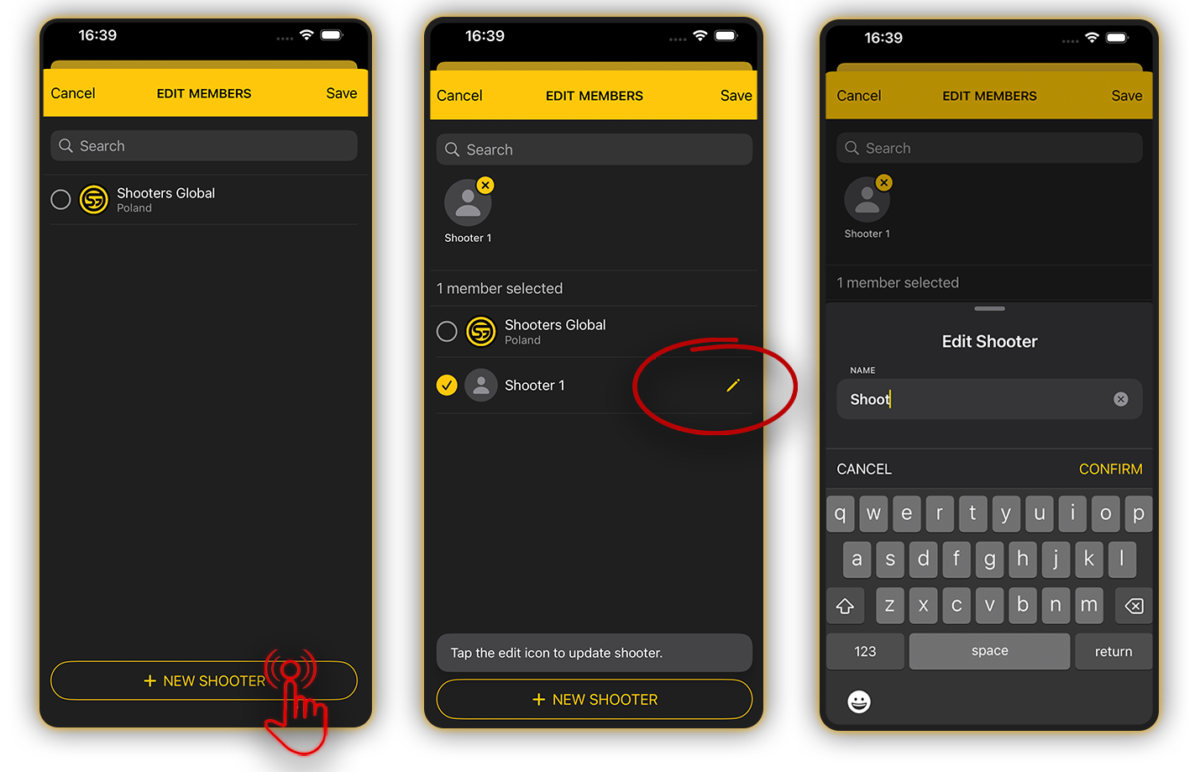
You can invite shooters who already have a Drills account or add guest shooters without any registration required. To add a guest, simply create a new shooter entry, edit their name, and you’re good to go.
Also read:
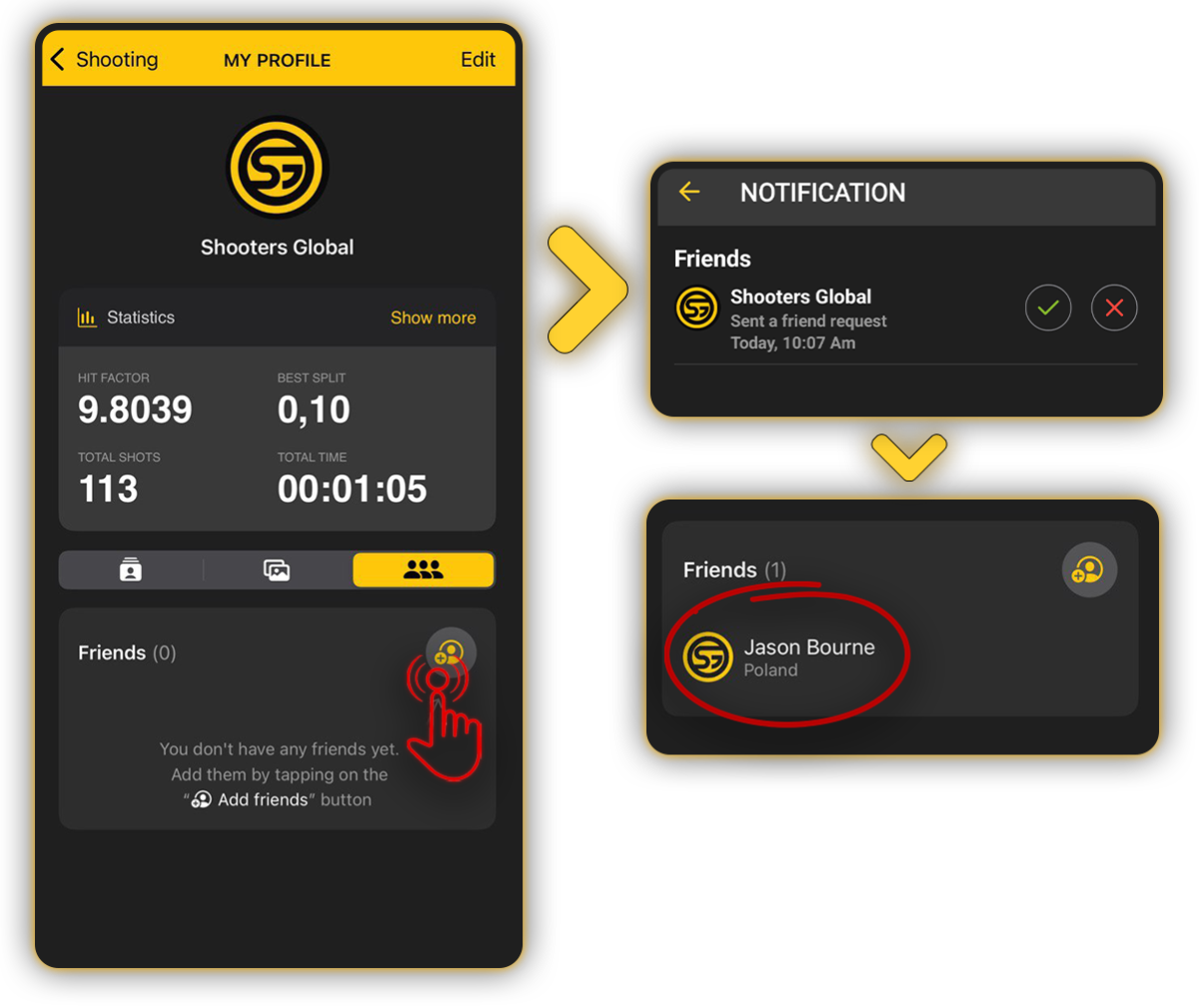
If you want to host a match with friends who already have a Drills account, follow this flow to connect with them: Go to Profile → Friends → Tap the “+” icon → Search by username. Once they accept, you can easily add them to any match.
A single match can include a mix of both registered Drills users and guest shooters.
Then, go to Match Mode and add participants in the “Squads” section. Don’t forget to add yourself.
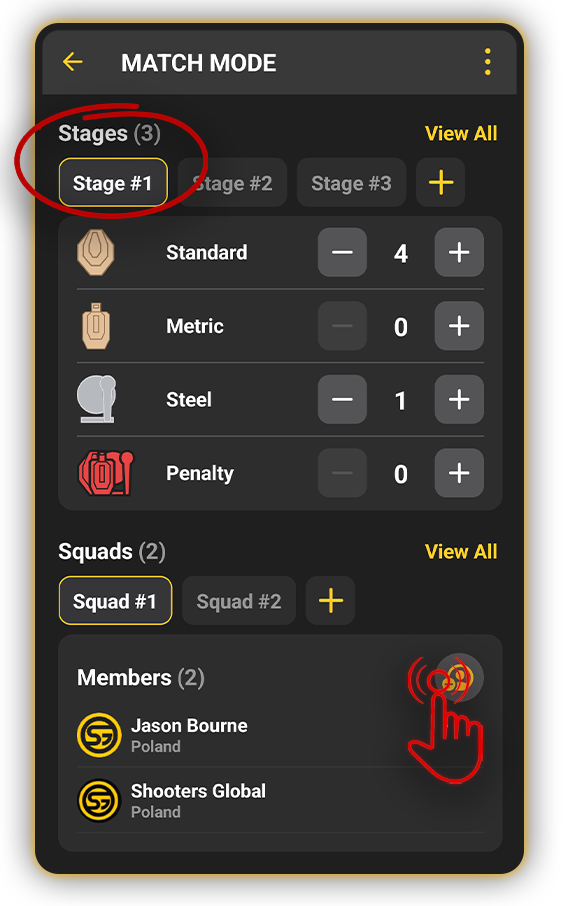
Then, create a stage by selecting the number of different targets on your stage.
You can have several stages and squads within one match.
Click on the first member to start with. Make sure that the shot timer is connected via Bluetooth. Set shot timer’s settings: delay, sensitivity, echo filter, beeper volume, time limit, and number of shots. These settings will be automatically applied to all other match members.
When you start the match mode, the timer will automatically switch to the RO mode.
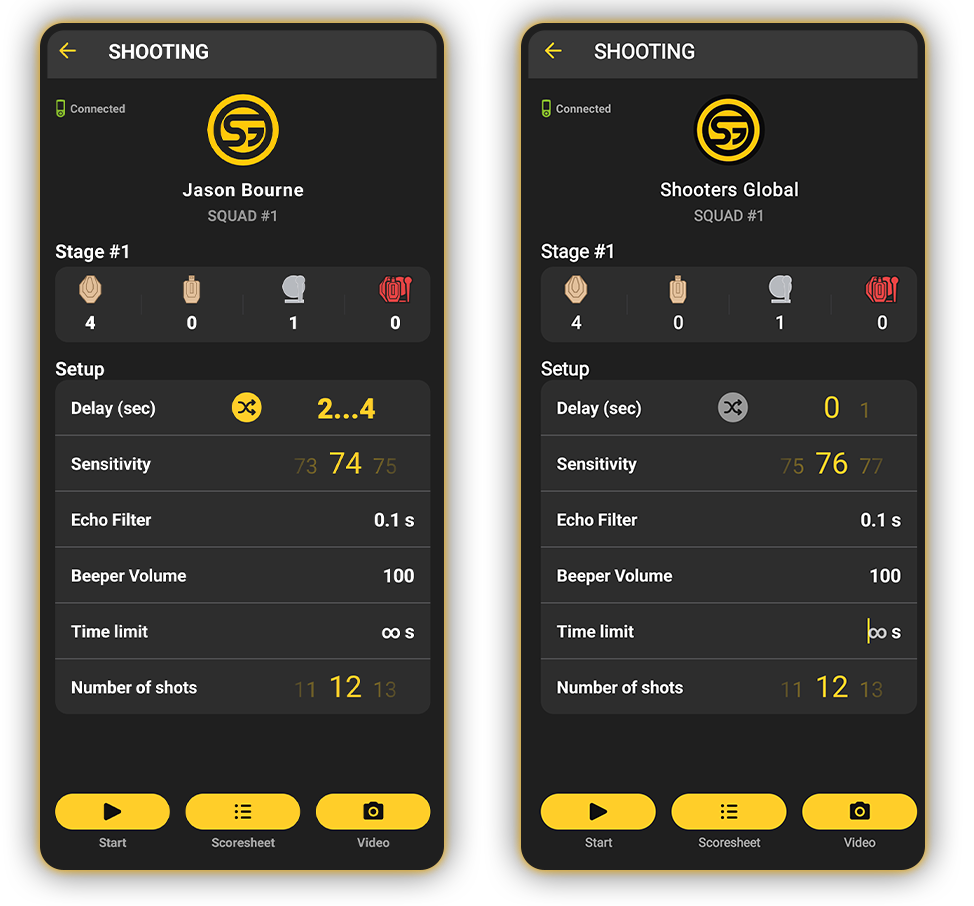
Click “Start” when ready. Alternatively, you can click “Video” to record and save videos of your shooting. You can only start the timer from the app in this mode.
After the person has finished the stage, mark the hits in the app. The application will combine hit data and shot timer’s data.
If you don’t have an SG Timer to connect, you can manually put your shooting time by clicking “Scoresheet”. Then, switch to the next participant until everyone has completed each stage.
Then click on the three buttons in the upper right corner to end the match, adjust it, or reset it. In the match settings, you can set the rules: the number of points for hits and the delay in seconds.
Your results will be visible in the “Scoresheet”. They will be saved in your “Activity” and you can view them on the web, share a link to it or download a CSV file.
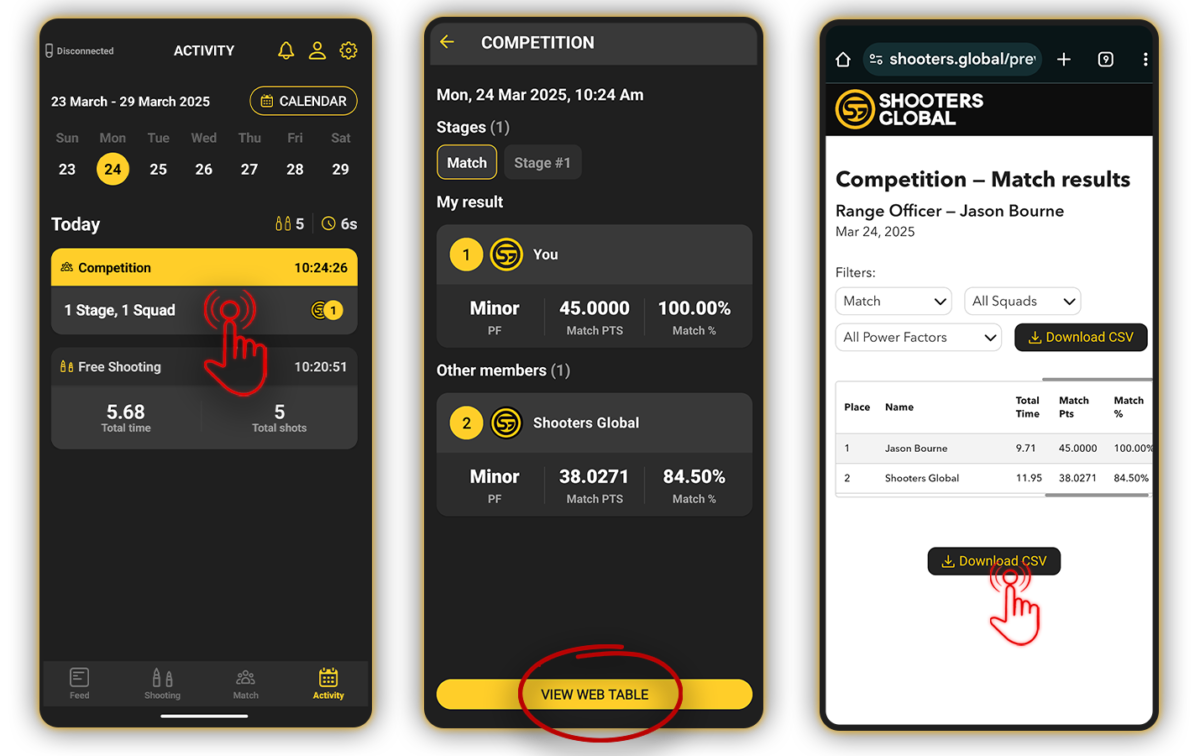
The results will appear in the Activity tab of every registered participant automatically. For guest shooters, you can export the results as a CSV file and share it via any preferred method outside the app.
To exit RO Mode, select the main menu, go to “RO mode” and switch to “Personal”.
May the best shooter win!