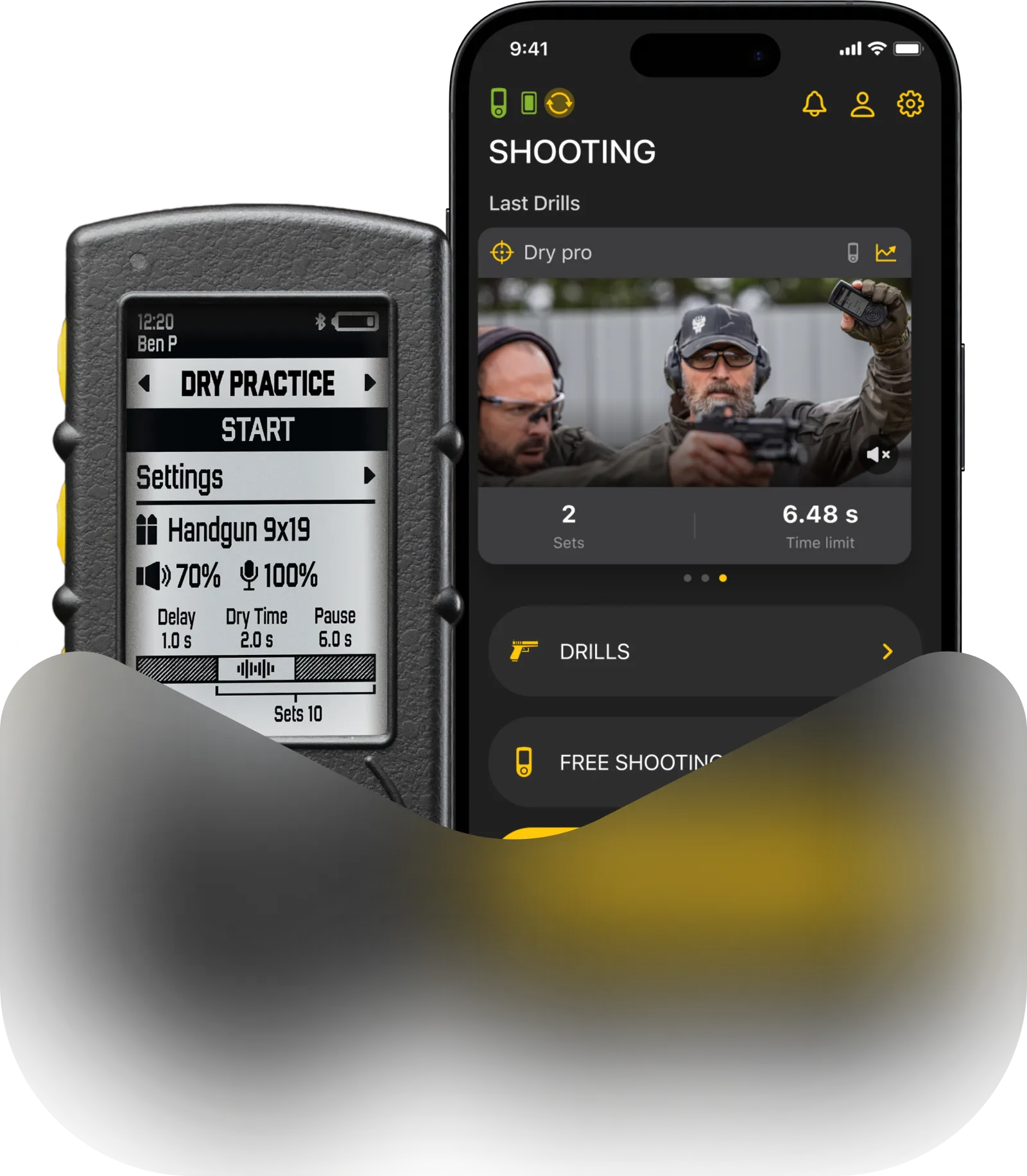
You can switch between “Feed”, “Gallery”, “Shooting”, “Match” and “Activity” in the lower menu of the Drills app. To learn more about Shooting and Match modes, visit the relevant section of the web guide.
Feed
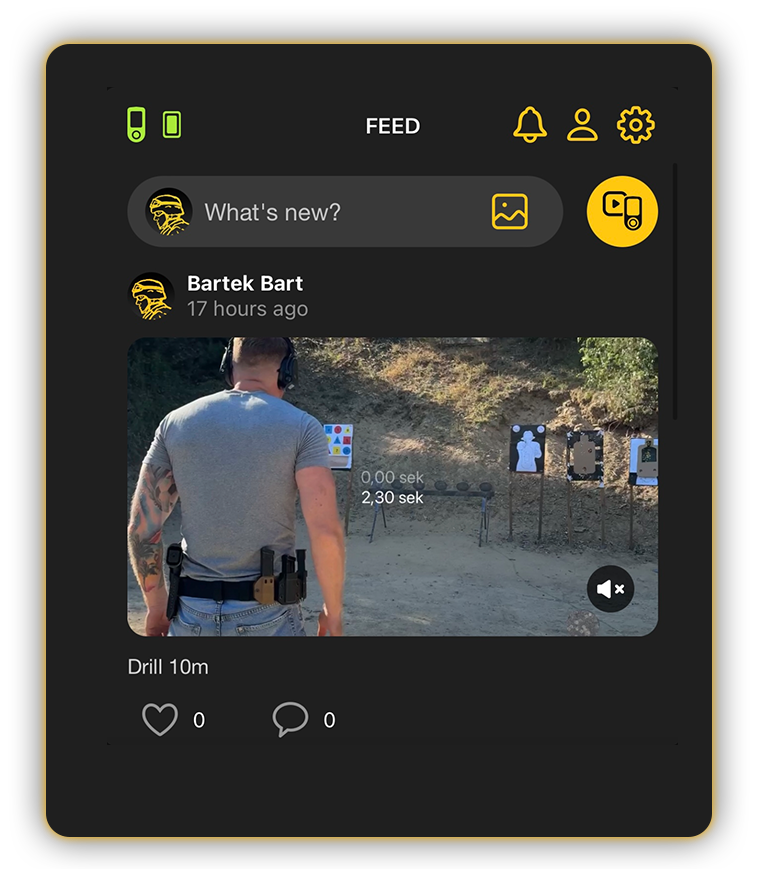
There is an internal news feed within the application. Something like our social network for shooters, where you can share your results, communicate and find friends. Everything you post here becomes visible for all Drills users.
Gallery
This is where all the videos recorded during your sessions are stored. They are categorized into two types: those stored locally within the app and those uploaded to the cloud.
Videos in the Gallery are organized chronologically by the date they were recorded.
Under each video preview, you can see the recording time and the file size.
The video duration is also displayed directly on the preview image itself.
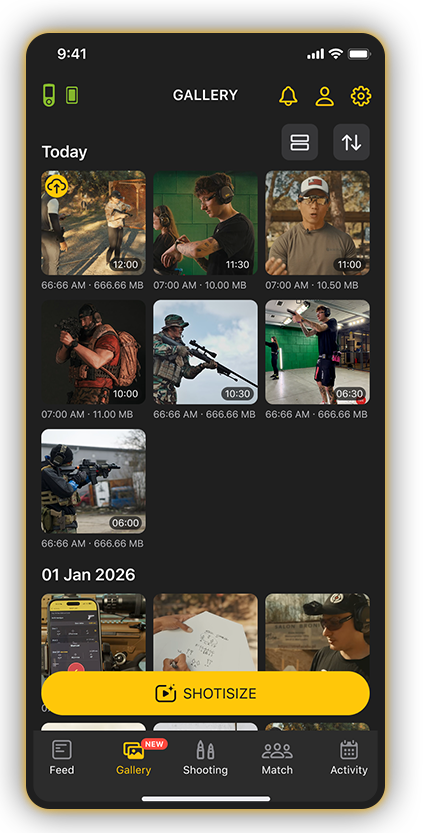
Within the Gallery, you can use the Shotisize feature to overlay shot times on your videos. For more details on how it works, please refer to the dedicated Shotisize manual.
You can view your videos in either a grid or a list layout. To switch between layouts, use the toggle button in the top right corner of the screen.
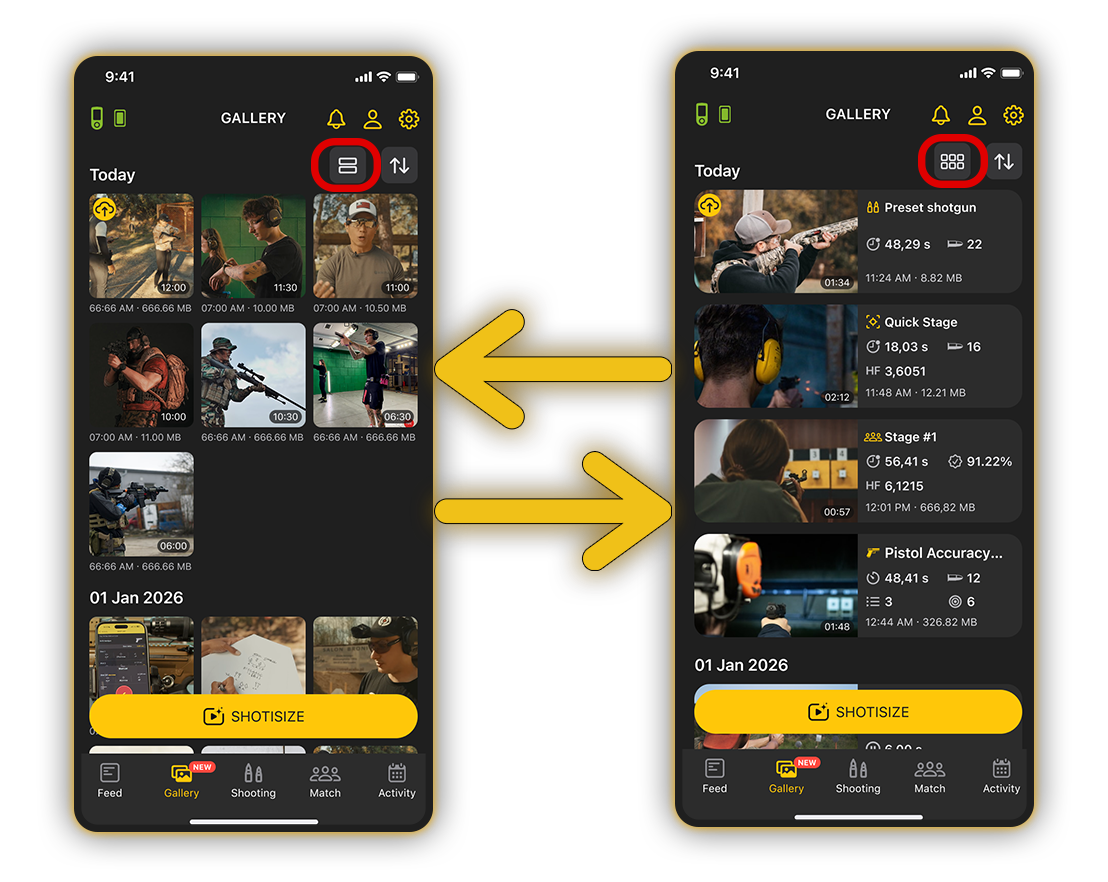
⌗ Grid view: Displays video previews in a clean tile layout.
≔ List view: Displays videos in a detailed list, showing additional information such as the practice type, the overall session time recorded by the timer, and the total shot count.
Next to the layout toggle, you will find the sorting and filtering options:
🔍 Sorting: You can sort your videos from newest to oldest or vice versa.
🗂️ Filtering: You can filter videos by practice type, including: All, Dry Fire Drills, Shooting Drills, Match, Quick Stage, and Free Shooting.
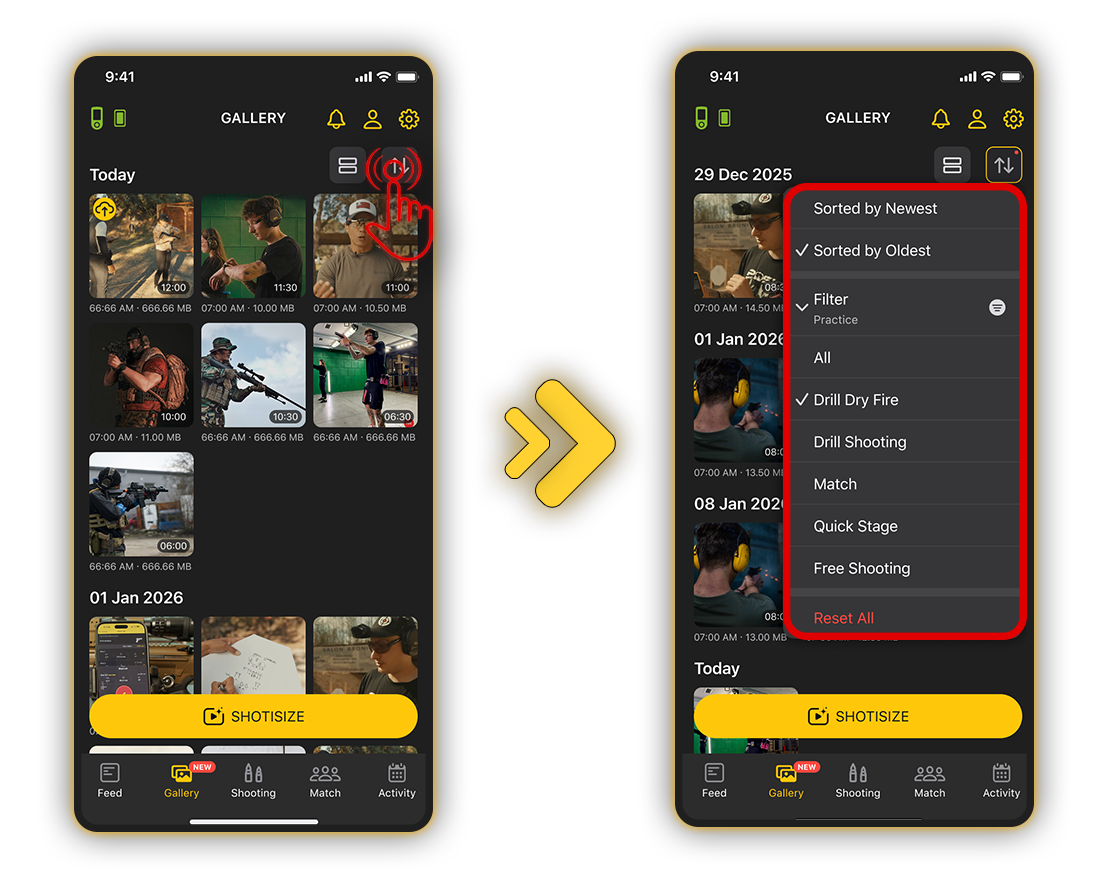
In this section, you can also view your videos using the built-in player.
Long-press a video to access the following options:
- Share the video to the FEED.
- View the video within the Activity section.
- Save or Delete the video.
- Download the raw video (without any overlays).
Multi-select is also available, allowing you to perform actions on multiple videos at once.
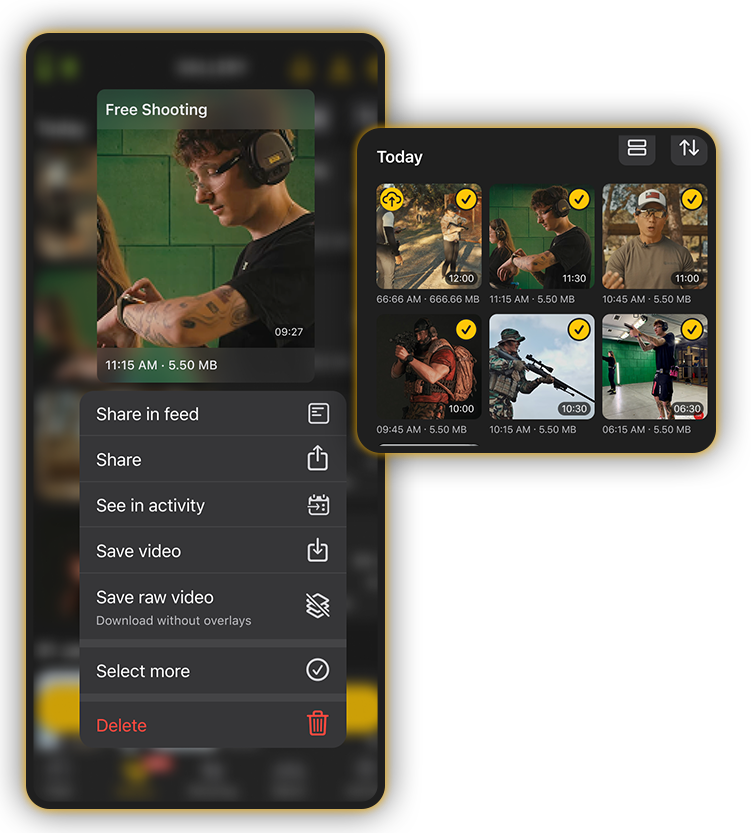
For example, you can download several videos to your smartphone simultaneously or share them across messengers and social media platforms.
Activity
Activity is your interactive training journal. All your results are stored here. Make sure you train with the timer connected to the app, or synchronize them after training.
To navigate between days — swipe the calendar row or tap the “Calendar” button. Days with at least one practice will be circled in yellow.
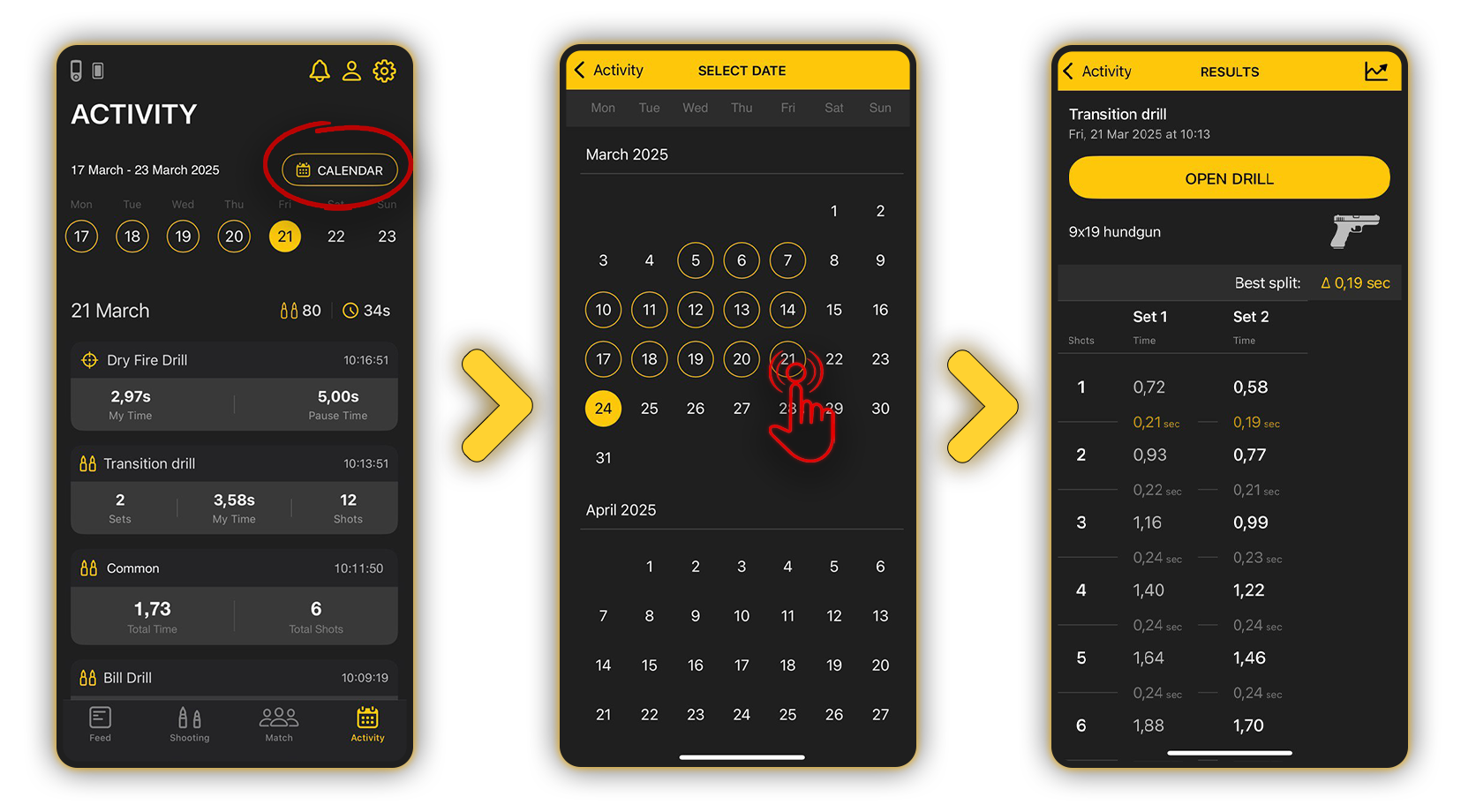
Tap on the individual session to view full information.
If you made a video of your session, it will be attached to the session history. The entire history is saved in the cloud. It will remain even if you delete the application and then come back and log in to your account again.
You can quickly reset accumulated statistics and start a new training cycle with “clean” data. This can be done in the Calendar.
To do this, use the icon in the top navigation menu.If a timer is connected, the history will also be deleted from the timer. Please note that if the timer is not connected, the history will return after synchronization with the timer.
To delete your data entirely, go to “Settings”, “Profile Edit” and delete your account.